Mixels
A mixel is what you get when pixels of different sizes share a screen. It is one of the quickest ways to make pixel art look unfinished.
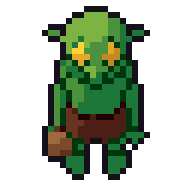
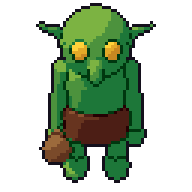
What it is
In pixel art every pixel of the artwork should become the same size on screen. A mixel (mixed pixel) breaks that: one sprite is drawn with chunky 4×4 screen pixels while another next to it uses 2×2, or an object is rotated or scaled so its pixels become uneven.
Common causes:
- Scaling one sprite up by 2× to make a “big” version of it.
- Mixing assets made at different resolutions, for example a 16 pixel tileset with 32 pixel characters drawn at the same world size.
- Rotating sprites in the engine by angles other than 90°.
- Scaling the whole game by a non-whole number, so some art pixels become two screen pixels and some become three.
- Dithering or outlines at a different pixel size from the rest of the sprite.
Why artists avoid it
The grid is part of the look. When everything shares one pixel size, the eye accepts the low resolution as a style. When sizes mix, the coarse parts look lazy and the fine parts look out of place. It reads as several art sets glued together.
Common mistakes
- Scaling a boss up. A large enemy made by scaling a small one by 3× has pixels three times the size of everything else. Big sprites need to be drawn big.
- Scaling the camera smoothly. Zooming by 1.5× produces uneven pixels across the whole screen. Use whole-number scales.
- Free rotation. Rotating a sprite by 30° in the engine resamples it and breaks the grid. Draw or render rotated frames instead.
- Particles and UI at another scale. Effects drawn at a finer grid than the characters stand out.
How to avoid it by hand
- Decide on one art resolution for the game world, for example a 320×180 or 640×360 view.
- Draw every asset for that resolution, at its intended size on screen.
- Display the game at whole-number multiples of that resolution.
- When you need a larger version of something, redraw it at the larger size with the same pixel size.
- For rotation, draw separate frames for each angle.
How Pixor does it
Give a project’s cameras one fixed Pixels/m and Pixor renders everything at that one scale (by default each camera fits its sprite to its own size instead). A two-metre knight and a one-metre crate come out at sizes in proportion to each other, at the same pixel size, so assets from the same project sit together without mixels. A larger sprite is rendered larger, with more detail, rather than scaled. Rotation is handled by cameras: each side is rendered as its own frames, so nothing has to be rotated in the engine. The pivot is locked to one pixel in every frame and side, which keeps sprites on the grid as they animate.
Related
- Sprite sizes: choosing a scale and scaling by whole numbers
- Sub-pixel animation
- Directions and the settings manual
Questions
Are mixels ever acceptable?
Some games mix scales on purpose, for example a high-resolution interface over pixel-art gameplay. Inside the game world itself, artists usually keep one scale.
How do I make a bigger sprite without mixels?
Redraw or re-render it at the larger size with the same pixel size, adding detail, instead of scaling the small one up.