Sprite sizes
The size of your sprites sets the look, the workload and the screen layout of a pixel-art game. Here is how to choose, and how to keep sizes consistent.
What it is
Sprite size is the size of the frame an object is drawn in, often a square like 16×16 or 32×32. It is closely tied to two other numbers: the game’s base resolution (how many art pixels fit on screen) and the scale (how many screen pixels each art pixel becomes).
Common sizes
- 16 px. Classic tiles, items and small characters. Very readable, little room for detail, quick to draw. Suits retro platformers and top-down adventures with lots on screen.
- 32 px. A common character size for modern pixel-art games. Room for a face, clothing and clear poses. Tiles are often 16 or 32 px.
- 48 px. A middle ground for characters with gear and expressive animation, without the workload of 64.
- 64 px and up. Detailed characters, fighting games, bosses and close-up scenes. Every frame takes much longer to draw by hand.
Tiles and characters
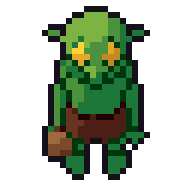
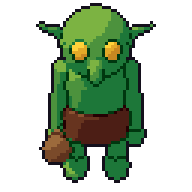
Tiles and characters do not have to match. A 16 px tile grid with a 24 or 32 px tall hero is common: the hero stands a tile and a half or two tiles tall. Choose the character size for readability and animation, and the tile size for level building. Then keep the pixel size the same for both, or you get mixels.
Scaling by whole numbers
Pixel art is drawn small and shown big. Pick a base resolution, then scale it by a whole number:
- 320×180 scales by 6 to 1920×1080 and by 8 to 2560×1440.
- 640×360 scales by 3 to 1920×1080 and by 6 to 3840×2160.
At whole-number scales each art pixel becomes a crisp square. At 2.5× some pixels become two screen pixels and some three, which looks uneven. Turn off texture filtering (use nearest-neighbour) so pixels stay sharp.
Common mistakes
- Choosing too big. 64 px characters look great in a mock-up and cost far more frames than a small team can draw.
- Scaling sprites individually. Making a big enemy by scaling a small one by 2× breaks the pixel grid.
- Ignoring the screen. A 64 px character on a 320×180 screen leaves little room to play.
How to choose by hand
- Decide the base resolution and what must fit on screen.
- Mock up one screen with a character, a few tiles and the interface.
- Try the character at two sizes, say 24 and 32 px, and play-test at real speed.
- Fix the size, then measure everything else against it.
How Pixor does it
In Pixor, give the cameras one fixed Pixels/m (by default each fits its sprite to a size of its own). Set it so your main character is the height you want, and every other model renders in proportion at the same pixel size. To try 32 against 64, change the scale and render again; nothing has to be redrawn. The pivot stays locked to one pixel in every frame and side, so sprites line up on the tile grid.
Related
- Mixels
- Isometric pixel art
- Exports, the scene manual and the settings manual
Questions
Does sprite size mean width or height?
People usually mean the size of the frame or tile, such as 32×32. Characters often fill only part of it, so check the character's height too.
Should tiles and characters be the same size?
Not necessarily. A common setup is 16 px tiles with characters 16 to 32 px tall. What matters is that all art uses the same pixel size.
Why does my pixel art look blurry in the engine?
It is being scaled by a non-whole number or filtered. Use nearest-neighbour filtering and whole-number scales.