An 8-direction walking character
The hardest thing to draw by hand, and the easiest to render: a character walking in eight directions, every frame consistent.
Sample project
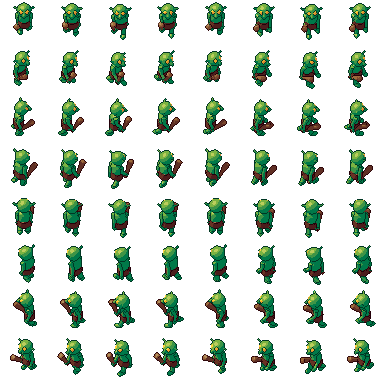
An 8-direction walking character: the .pixor project and its library model (CC0). The sheet on the left is what it renders.
Intermediate · about 10 minutes
1. Import an animated character
Drag the goblin from the free library onto Pixor, or a rigged character of your own: glTF or FBX with its clips. The import says how many bones and clips arrived.
2. Eight cameras
In the Scene step, click South in the Outliner. Set Game to Top-down RPG (a three-quarter view from above), then Ring round the model to 8. Pixor adds a camera per side, named for the side each sees: South, Southeast, East, Northeast, North, Northwest, West, Southwest.
They share one view, pitch and size, so they share one sheet, one palette and one pixel scale. That is what keeps the eight directions looking like the same character.
3. The walk
In the Action step, click Walk in the Actions list. If the character drifts forward as it walks, keep it in place in the action’s Inspector (root motion): the sprite stays on its pivot, and the offset is written for your engine.
4. Fewer, better frames
A walk at 24 frames a second is far too many frames for pixel art. Open the Asset step and choose the Sprites node: press Smart frames, then set Kept frames to about 6. Pixor keeps the pose extremes, each held until the next, the way an animator picks keys. Or set Frames/s to 8 to 12 for a steady rate.
5. Check it
Play the result in the 2D View. Light bands hold until a surface has clearly turned, and pixels that would blink for a frame are kept steady, so the walk shouldn’t flicker. Turn on the pixel grid (Shift+G) and onion skin (O) to look closer.
6. Export for your engine
Export writes a sheet with one row per side. For Godot, add the Godot SpriteFrames output in the Asset graph: every side becomes an animation of an AnimatedSprite2D (Godot guide). For touching up by hand, add the Aseprite file: a tag for every side, ready to paint on (re-bakes keep your paint).
Next
- Top-down RPG sprites: sizes and cameras for the genre.
- Sub-pixel animation.
Questions
Can I use Mixamo animations?
Yes. FBX files from Mixamo import as they are. Clips in separate files are found automatically when they are named after the model (hero@walk.glb); otherwise add them with Clips from a file… under the Actions list.
My character slides across the canvas while walking. Why?
That is root motion: the clip moves the character forward. In the Action step, the action’s Inspector keeps it in place, and the offset is exported for your engine.