Normal maps for 2D sprites
A normal map tells a 2D engine which way each pixel of a sprite faces. With it, a torch carried past a wall lights the near side of every brick and leaves the far side dark.

What it encodes
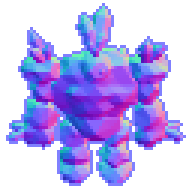
A normal is the direction a surface faces. A normal map stores one per pixel, packed into an image: red for left to right, green for down to up, blue for towards the viewer. A pixel facing the camera head on comes out a pale violet-blue. The side of a barrel turning away to the right goes redder; its top, facing up, goes greener.
A 2D game engine reads that image alongside the sprite. When a light sits to the left, pixels whose normals point left are lit and those pointing right stay in shade. The colour sprite stays the same; the lighting moves.
What it is good for
- Moving lights. A torch carried down a corridor, a muzzle flash, a lightning strike.
- Day and night. One sprite lit from the east in the morning and the west at dusk.
- Depth on flat sprites. Walls, rocks and armour that catch a rim of light from a nearby fire.
Why pixel-art normal maps should be flat per pixel
A normal map from a smooth 3D surface changes a little in every pixel. Under a 2D light that gives soft gradients, which fight the hard bands of a pixel-art sprite and look like a filter laid over it.
For pixel art, keep the normal map in the same spirit as the colours. Each pixel has one clear direction, and neighbouring pixels on the same face share it. A face then lights up as a block, the way a band of colour would be drawn. The edges of the map should match the sprite exactly, pixel for pixel, or lit edges spill past the silhouette.
The texture filter matters here too. Set both the sprite and its normal map to nearest, or the engine blends normals between pixels.
Using one in an engine
Godot 4. Make a CanvasTexture for the sprite: put the sheet in its diffuse texture and the normal map in its normal texture. Use that as the sprite’s texture, then add a PointLight2D or DirectionalLight2D. Sprites with a normal map are shaded by direction; without one they are lit flat.
Unity. In the Sprite Editor, open Secondary Textures and add the normal map with the name _NormalMap. With the 2D Renderer, 2D lights can then use it when their normal map option is on.
Depth and emission
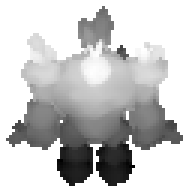
Two other maps often travel with a normal map. A depth map stores how far each pixel is from the camera, useful for sorting, fog or shadows. An emission map marks pixels that give off their own light, such as a glowing eye or a lantern, so they stay bright in the dark.
How Pixor does it
Because Pixor renders from 3D, it knows the real surface behind every pixel. It can export normal, depth and emission maps aligned to the sheet: the same layout, the same frames and the same pivot, so each map lines up with its sprite without any fitting by hand. See exports and the Godot and Unity guides.
Related
- Pre-rendered sprites: sprites rendered from 3D
- 3D to pixel art: how a model becomes pixels
- Palette ramps: the bands a light should respect
Questions
Do I need a normal map for every sprite?
No. Only sprites that dynamic 2D lights should shade. Backgrounds lit by baked colour and UI do not need one.
Why is my normal map purple and blue?
Colours store directions. A pixel facing straight at the viewer is stored as a light blue-violet; pixels turning left, right, up or down shift towards red or green.