Outlines
Outlines decide how readable a sprite is. Pixel artists think of them in three kinds: the silhouette, the lines between parts, and creases.
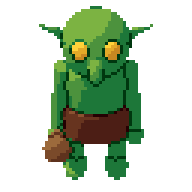
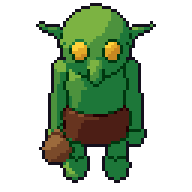
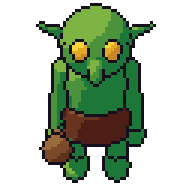
The three kinds of line
- Silhouette. The outer edge, where the sprite meets the background. It does the most work: a sprite with a clear silhouette reads even as a single colour.
- Inner lines. Edges between parts inside the silhouette: an arm in front of the body, a belt across a tunic, a helmet over a face.
- Creases. Folds and sharp turns within one surface: the ridge of a nose, a pleat in cloth, the edge of a box.
Most artists treat these differently. The silhouette is often the darkest and most complete. Inner lines are lighter or partial. Creases are often left out, with shading doing the work instead.
Dark or coloured
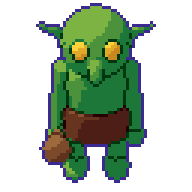
A near-black line round everything is bold and readable, and suits small sprites and busy backgrounds. A pure black can look harsh, so many artists use a very dark colour from the palette instead, such as a deep blue or brown.
Coloured lines take the colour from the shape they sit against: a dark red line on a red cloak. Taken further, with lines that lighten on the lit side, this becomes selout.
Common mistakes
- Lines two pixels thick. At small sizes a double line eats the sprite. Lines should be one pixel.
- L-corners. When a line changes direction, a corner pixel that touches both neighbours makes an L and looks thick. Step diagonally.
- Broken thin parts. A sword blade or staff one pixel wide can break into dots if drawn carelessly. Keep it as a continuous one-pixel line.
- Outlining every crease. Too many inner lines turn a sprite into a wireframe. Let shading carry small details.
- Inner lines as dark as the silhouette. The shape stops reading as one object.
How to do it by hand
- Fill the sprite’s shape in one flat colour and check the silhouette alone.
- Draw the silhouette line, one pixel wide, with no L-corners.
- Add inner lines only where parts overlap and could be confused.
- Shade, then add creases only where shading is not enough.
- Decide on dark or coloured lines and apply it everywhere.
How Pixor does it
Pixor finds lines from the render’s depth, normals and part ids, and keeps silhouette, inner and crease lines as separate kinds. Each can be left out, drawn dark in a colour you choose, or drawn as a selective outline. Lines are one pixel wide without L-corners, thin parts of the model are kept as one-pixel lines, and lines that appear for only one frame are cleaned up. Each line setting is a node in the Style graph.
Related
- Selout
- Palette ramps
- Looks and the settings manual
Questions
Should pixel-art sprites have outlines?
Most small sprites benefit from at least a silhouette line, so they read against any background. Larger art can drop outlines and rely on shading.
Black or coloured outlines?
Black is bold and readable. Dark coloured lines, or selective outlines, look softer. Choose one style for the whole game.
What is an L-corner?
Where a line turns, an extra pixel in the corner makes an L shape and thickens the line. Clean pixel lines step diagonally instead.