The asset graph
The Asset graph is where an export is designed; the Export window is where it is run. The Asset step turns sprite lists into files, and the way it does that is a graph: sprite lists come in, are arranged on a sheet, and go out as files. Those are the three kinds of wire, and they cannot be mixed up — a list cannot be wired into a Sheet without being arranged first, and a sheet cannot be tagged.
Its inputs are Sprites nodes (and Image file nodes, for pictures
from outside), each bringing in sprite lists: an
action seen by a camera, drawn with a Style, with a part set, cut into
frames, with every layer. A Sprites node names all of them, fixed: the
window header’s choices are not its, so what an asset writes never depends
on what happens to be shown. Its
outputs are one node per file. A Sheet node is a sprite sheet in
memory: it shows the sheet on its face and writes nothing. Every file is
a File node wired from it — PNG image for the sheet itself, then
its JSON, its .aseprite, its Godot SpriteFrames, its normal map. To
export a sprite sheet, wire Sheet → PNG. A graph may have as many of
each as the project has files to write.
Everything an export can be told is on a node, but which folder it goes to: that is the Export window’s, which lists every file the graph will write there, by name and kind, before you press Export — the quickest way to see what a change to the graph does to the files. How a sheet’s frames are named is on its PNG image node (and in the Inspector with its Sheet), its layout on the Arrange feeding it, and each other file it writes — with that file’s own settings: a GIF’s scale, a video’s rate, which shadow, which palette variants — is a File node wired from it. A project that never rewires the graph stores none: it is one sheet of every sprite list.
A picture can show any layer. Under a Sheet’s picture here, Layer picks the layer it draws — until it is told, the one the 2D View’s own Layer draws — the sprite, its lines, its flat colours, its normals, depth, emission, a Style’s extra output — or Every layer at once: a frame’s side by side, a list’s a row each.
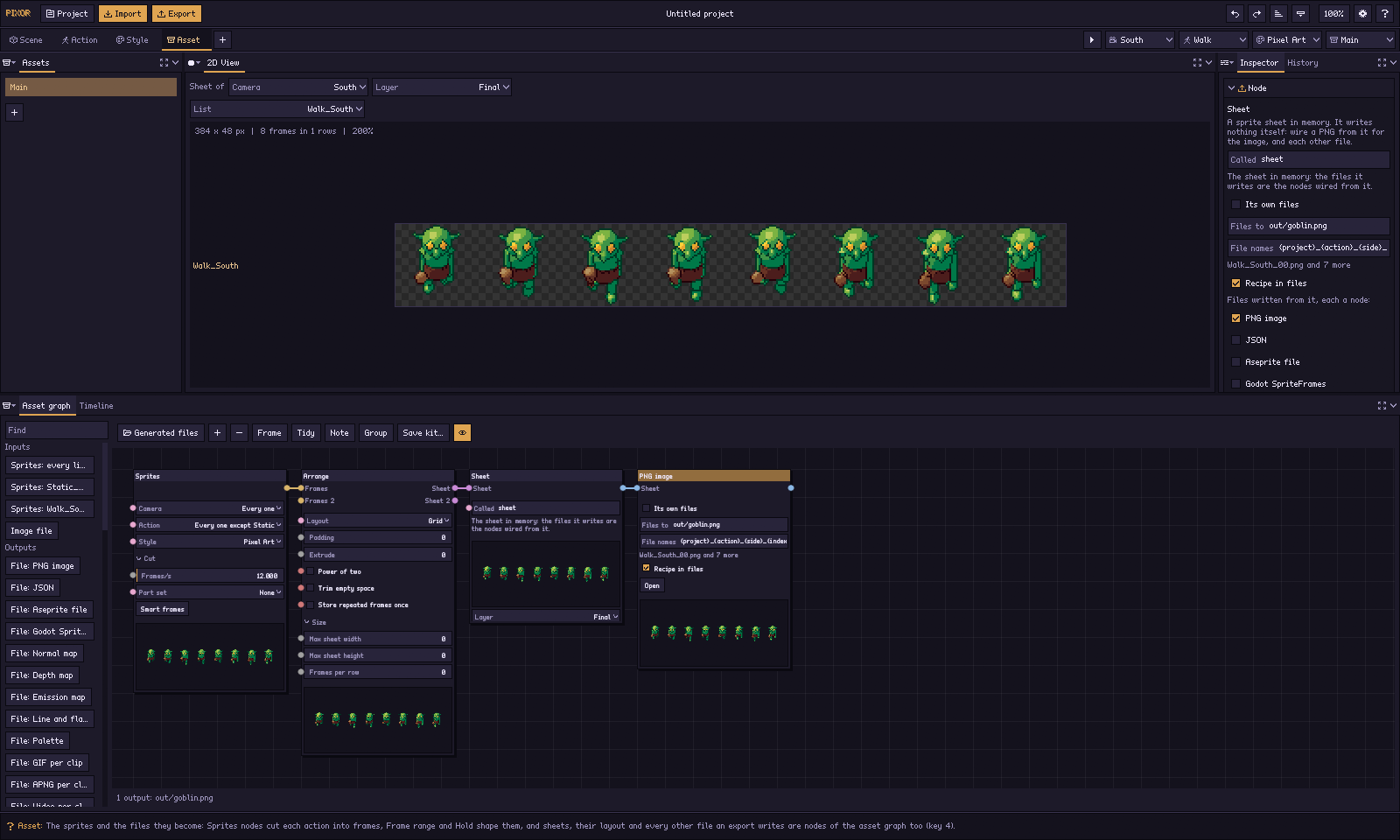
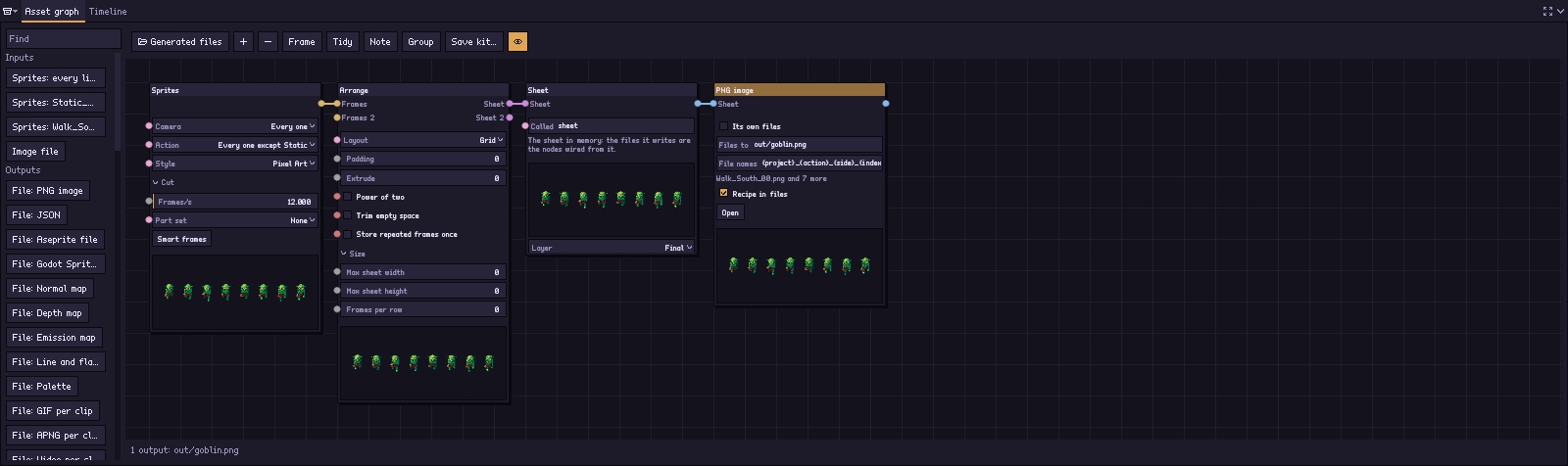
That is the graph you start with, the Asset pipeline Main:
Sprites (every action except Static) → Arrange → Sheet (sheet) → PNG imageThe window header’s choices
Action, Style and Asset are independent pipelines, each a graph of its own. The right end of the workspace tabs’ row holds four selects — Camera, Action, Style, Asset — after Play/Pause: one choice of each, across every step.
| Step | Draws |
|---|---|
| Action | the chosen action, seen by the chosen camera |
| Style | the chosen action, seen by the chosen camera, drawn by the chosen Style |
| Asset | what its own graph’s Sprites nodes name — not the header’s choices |
The Styles list (Style step) and the
Assets list (Asset step) are the same choices as the header’s Style
and Asset selects: a click in either shows the same thing. The Export
window starts with the Asset pipeline chosen in the header’s Asset
select, and writes it alone; its files are named as when every Asset
pipeline is written (pxr render --pipeline all writes them all).
Where the sprite lists come from
The sprite lists are made here, by the Sprites nodes, and only here: which actions go in the sheets is what the Sprites nodes take, nothing else. A Sprites node names a camera, an action, a Style and a part set, and holds the cut: how the action’s motion becomes frames.
Its Action is one of:
- Every one except Static (
every-one-except-static, what a new Sprites node, the Asset pipeline a project starts with and a new project take): every action of the Actions list but Static, the rest pose standing still — Static all the same when the project has no other action (a still model), so a crate still has its sprite. - Every one (empty, or
*): every action, Static among them. - An action by name, Static among them: that action alone, or several
(
walk, attackfrompxr graph set). A clip of the model is drawn when a Sprites node names it whether or not it is one of the project’s actions — named, its frames are always there, in the node’s picture, in what it feeds and in the export.
A name that is nothing (an action deleted or renamed elsewhere) is said on the node, in plain words: No frames of Sway seen by South: choose an action and a camera the project has on the Sprites node.
The cut is on its face and in the Inspector:
- Frames/s (
fps): one frame every so many seconds, 12 a second until told. - Kept frames (
smart): so many smart frames, chosen as an animator would — the poses where the motion turns, more where it is fast, each held until the next. 0 is off. Smart frames on its face turns them on, Use frames/s goes back to an even step. - Picked frames (
picked): times in seconds, picked by hand. With the Sprites node chosen, the Timeline behind the asset graph shows its frames: click the key strip to add or remove one, or drag a key along it (one undo step each). The face says N frames picked on the timeline.
Picked frames win when there are any, then kept frames, then frames a second. A Sprites node added to a graph starts cut as the graph’s first one is. An action made of nodes or keys is cut at its own frames. Hold (ms) beside the Timeline’s frame counter sets the shown frame’s hold (see holding one frame longer): the action’s, so every Sprites node that takes the clip keeps it. The Action step is not changed by any of this: it plays the whole motion, and a sprite frame lands on the time it was cut at.
Between the Sprites node and the Arrange go the nodes that slice a list:
| Node | What it does |
|---|---|
| Frame range | Only frames from to to of what comes in, counted from 0: the wind-up of an attack as a list of its own, one frame of an idle as an icon, a list over two sheets. A range keeps what each frame showed — its time in the clip, its part set, its root travel. A range of a range counts in what came in; part of a loop no longer loops; a range past the end keeps the last frame. |
| Hold | Every frame held so many times as long: 2 plays the list at half speed. |
Sprites (South, attack, Pixel Art, smart 6) → Frame range (2 to 5) → Hold (×2) → Arrange → Sheet → PNG imageChoosing a Sprites, Frame range or Hold node makes the 2D View play the list it gives, cut, sliced and layered as it will be written. Neither node costs a render: they decide which frames go where before a pixel exists.
To use a chain again, pick Sprites → Frame range → Hold and group them (Ctrl+G), then Save kit… keeps the group as a node kit under My nodes; or save the whole Asset pipeline as a kit (see Asset pipelines).
Renders, and what their files are called
A render is a framing, a Style and how each clip is cut. Sprites nodes share one render while they agree: the same Style, framed together, and no clip cut two ways. So a walk at 8 frames a second and an attack picked by hand are one render and one sheet. A second node that cuts the walk into smart frames, or draws it with another Style, is a render of its own.
The first render writes its files as the graph names them. Another is
written beside them under the words that differ from the first’s: its
camera, its Style’s name, then the cut of each clip it cuts otherwise —
8fps (or 12_5fps), smart6, picked4 (four frames picked by hand).
So out/hero.png, then out/hero_smart6.png and
out/hero_Pixel_Art_2_8fps.png, each on the palette of its Style.
pxr names lists each render’s files, with the frames a Frame range
keeps, and refuses two renders that would write one file — two different
hand-picked cuts of four frames of the same clip — before anything renders:
would be written twice.
From a script:
pxr graph add game.pixor --which asset --node sprites --set action=attack --set smart=6   # node 4, merged in by node 5
pxr graph add game.pixor --which asset --node frame-range --set from=2 --set to=5 --alone --in frames=4   # node 6
pxr graph add game.pixor --which asset --node hold --set times=2 --alone --in frames=6                    # node 7
pxr graph wire game.pixor --which asset --from 7 --to 5 --slot frames2   # the cut attack into the Merge, in place of node 4
pxr graph set game.pixor --which asset --node frame-range --set to=6
pxr project set game.pixor --add-style portrait
pxr graph add game.pixor --which asset --node sprites --set action=walk --set style=portrait --set fps=8
pxr names game.pixor
The Frame range and the Hold go between the attack’s Sprites node and the
Merge, so they cut the attack alone. Added without --alone, they would go
before the Arrange, after the Merge, and cut every list the Merge joins.
pxr render --fps 8, --smart-frames 6 and --keys 0,0.25,0.5 set every
Sprites node’s cut at once. A blueprint run with pxr run game.pixorblueprint --set hold.times=4 reaches every Asset pipeline’s Hold
node, --set icons/hold.times=4 only the pipeline icons’.
The panel
Once a graph is stored, the 2D View above it shows what the chosen output writes — its takes, blocks, places, stacks and overlays — drawn by the very code that writes the file; before that, it is a row per action and side, which you can drag to reorder.
Asset graph is a panel of the Asset step, under the 2D View, on the same canvas as the Scene graph: boxes, wires, settings on each node’s face, a plus to add a node into the chain wired up, a minus to delete one, Frame to see it all, Tidy to lay it out again, Note to put a note on it, Group to make the nodes picked one group, and Save kit… to keep the chosen group, or with none chosen the whole graph, as a kit (Save the Asset graph as a kit) — the bar every graph has, with the keys every graph has (Working in it). Its node library down its left lists Inputs and Outputs, the project’s Pipelines and My pipelines, then Between and your own kits under My nodes. Right-click the canvas › Back to one sheet puts it back to one sheet with the files it had. Icons writes inventory icons. The line along the bottom says what the graph writes. Generated files, first on the bar, opens the generated folder in your file manager.
Every file node has Open: it opens that node’s file in the
application your system opens that kind of file with — the sheet in an
image editor, the .aseprite in Aseprite, the video in a player, the
archive in an archive manager (its tooltip names which). A file that is not
generated yet, or is out of date, is generated first, with a loader on
Open meanwhile.
Every setting of an asset node is a property (see nodes): a row with a port at its left, set on the node or wired from a value. Delete deletes the chosen node, as the minus does; the last node that writes stays.
Every node between the lists and the files shows what it hands on,
laid out on a sheet: a Layer node its layer, a Frame range its frames, a
Flip its mirror, an Arrange its sheet. A picture shows everything its
Sprites nodes name, whatever the window header shows: every camera,
action and Style, from every render they are drawn in. Cameras framed
apart (another view, pitch or size), another Style or a clip cut another
way are renders of their own, written to sheets of their own; a picture
fed by several lays out one block for each sheet, under the name of the
file it is written to (hero.png, then hero_top.png), its rows as that
sheet’s are. The renders the 2D View does not show are drawn behind it,
one after the other, and kept until the project changes. One node never stops another’s
picture: each is laid out from what feeds it alone, and a node that
cannot be — a picture file not chosen yet, a Merge with nothing wired
into it — says why in red where its picture would be, and so do the
nodes it feeds, while the others keep theirs. The pictures are laid out
from every list, drawn whole: while a chosen Frame range or Hold has the
2D View play its one list, they keep the lists last drawn whole, and a
node added meanwhile gets its picture from them. When something they are
drawn from changes meanwhile — a part hidden in the Outliner, a material,
a lamp — they are drawn again behind the 2D View, which keeps playing the
range. Every file node shows its file
before it is exported, made by the
same writer an export uses: a picture of it on the node, and the whole of
it in the 2D View when the node is chosen — a PNG or a map as a picture, a
GIF, an APNG or a video playing, a JSON, a Godot file or a text file as
text, and a ZIP as the list of what it holds. A node that writes several
files (a GIF per clip, a layer per file) has a File list above the view.
Fast files, and Generate
What is fast to make is shown as the graph changes; what is slow waits for its node’s Generate (D51). Fast: everything between the lists and the files, the Sheet, and the PNG image, JSON, Godot SpriteFrames, Palette, Text file, Emission map, Shadow layer and Line and flat layers. Slow: GIF, APNG and Video per clip, the Aseprite file, Normal and Depth maps, Palette variants, Light kit, PICO-8 cart, Report, ZIP archive, Animation file and Icons — what encodes every frame again, or renders. (Paper-doll and Parallax layers are renders of their own: the Export window makes them.)
A slow node shows Generate instead of its file. Pressed, the file is made off to one side — the button turns a loader, and you keep working — then the node shows its picture, the 2D View the file, and the button reads Regenerate. Change anything feeding it, and the node keeps what it made but says Out of date in place of making it again: press Regenerate, or Open, which generates first.
Generated files
What Generate and Open make are real files, in a temporary folder of
the open project (under your system’s temporary folder, named
pixor-generated- and the project), a folder an Asset pipeline and one a
node. Generated files on the bar opens it. It cleans itself: deleting a
node deletes its files, deleting an Asset pipeline its folder, and closing
the project or quitting Pixor the whole folder; a folder a crash left
behind is removed the next time Pixor starts. They are never what an
export writes: the Export window writes every file fresh.
The chosen node’s settings are in the Inspector too — and with nothing chosen, the graph’s own Sheet’s. Under a Sheet’s settings there, every file it can write is a toggle: ticking JSON or Video per clip adds that File node, wired from the sheet, and unticking removes it. So an export is set in a few clicks without touching a wire, and it is still a graph: every toggle is a node you can see, with its own settings.
The nodes
N x N nodes. Layer, Frame range, Hold, Flip, Tag, Arrange and Place do the same thing to as many lists as are wired into them, and give each back on an output of its own, across from its input: one Layer node takes the normals of four sprite lists and hands on four lists. A spare input is always there for the next one. Merge is the other way: any number of lists in, one out.
| Node | Takes | Gives | What it does |
|---|---|---|---|
| Sprites | — | frames | Input. Sprite lists, fixed here whatever the window header shows: with several scenes, the scene chosen (or every one); the camera chosen (or every one) — a camera is a side — the action chosen (Every one except Static, Every one, or one by name, Static among them), drawn with the Style chosen (the project’s first of each until told), and cut as its Frames/s, Kept frames or Picked frames say (see where the sprite lists come from). Camera and action also take, from pxr graph set, a comma-separated list (South, East, North) or a name’s start and * for a ring (turret*). A part set of the project renders every clip again with that set on over every frame (equipment, damage states). Every layer comes with the list; a Layer node picks one, and without one the sheet is of the finished sprite. |
| Image file | — | frames | Input: a picture from outside, as a sprite list of its own: a PNG — one frame, or a strip or grid cut into frames Frame width by Frame height, each held Each frame — or a GIF, with its frames, their delays and whether it loops. Called is its row’s name. The picture takes the sheet’s palette (each pixel its nearest colour; what is more than half transparent is empty) and is centred on a cell; a frame bigger than a cell is refused, with both sizes. It goes on the sheets its node is wired to and on no other. |
| Merge | frames, … | frames | Every list wired in, as one: many sprite lists on one sheet. |
| Layer | frames × N | frames × N | One layer of each list: final, lines or flat, or one of the maps a game lights the sprite with — normal, depth, emission — which makes the sheet it lands on a picture of colours rather than palette indices — or shadow, the shadow each frame casts, in black (the one the project’s Shadow asks for, else a contact shadow), which an Overlay puts under the sprite; or the name of one of the style graph’s extra outputs, whose rows are then named after it (idle_South_rim). A render’s own pictures are layers too: with props or pieces, a paper doll’s base and each piece by its name (idle_South_helmet); with parallax layers, layer0 (the farthest) to the last. Each is rendered only when a Layer names it, by pxr render — which is what the app’s Export window runs. Separate a list’s layers with a Layer node per layer, each to its own Sheet; combine them with a Merge, a Stack or an Overlay. |
| Frame range | frames × N | frames × N | Frames from to to of each list, counted from 0: from=3 to=3 for a still or an icon (a new one is from=0 to=0, the first frame), from=2 to=5 for a few. Separate a list over several sheets with a Frame range per part. |
| Hold | frames × N | frames × N | Every frame of each list held times as long. |
| Flip | frames × N | frames × N | Each list mirrored left to right, standing for another camera: a Sprites node of East flipped as West is walk_West, drawn from walk_East — pixels, normals, hit boxes and root motion mirrored. A symmetric model need not render its other side. |
| Tag | frames × N | frames × N | Whether the rows loop (Keep, Yes or No), and a pivot of their own (x,y in cell pixels) for a clip that stands differently. A clip that does not loop is a tag that plays once in the JSON and the .aseprite; the pivot is on every frame of the JSON and a key of the pivot slice. |
| Arrange | frames × N | sheet × N | Each list on a sheet: grid or strip, padding, extrude, power of two, trimming, repeated frames stored once, a maximum width to wrap rows under, a maximum height past which the sheet is split into pages (whole clips to a page, each its own set of files), and frames per row, which runs every clip on after the last as a contact sheet does. |
| Place | sheet × N | sheet × N | Each sheet moved to a place on the image. |
| Stack | sheet, sheet | sheet | Two sheets as one, the second under or beside the first, with a gap. |
| Overlay | bottom, top | sheet | One sheet laid exactly over another, the way the engine stacks layers: the top’s empty pixels show the bottom. Each layer can be turned off to see the other alone. The two must line up frame for frame — the same frames in the same places — or the export says which frame does not. |
| Sheet | sheet | file | A sprite sheet in memory. It writes nothing: its files are File nodes wired from it. Called is its name. |
| File | sheet | file | Output: one file on disk, written from the Sheet it is wired from, with its own settings on its face, Open to open its file, and Generate when it is slow to make. PNG image (the sheet itself, and what its files are called: Files to, the path the PNG writes, whose name the others take, under the folder the Export window is given; File names, the template its frames are named by, with the first name it makes shown under it; Recipe in files, whether the files carry how they were made; Its own files gives the sheet a path, names and recipe of its own, and off, its files go where the project exports — the Inspector shows these with the Sheet too), JSON, Aseprite file, Godot SpriteFrames, Normal map, Depth map, Emission map, Line and flat layers, Palette, Light kit, PICO-8 cart, Report; GIF per clip and APNG per clip (Scale); Video per clip (Scale, Frames a second, Background); Shadow layer (contact or drop); Palette variants (the list of them); Paper-doll layers (Pieces); Parallax layers (Layers, Haze far layers). Deleting a Sheet deletes its File nodes. |
| Text file | sheet | file | Output: a text file from a template over the frames (below). |
| Animation file | frames | file | Output: an animation of each sprite list wired in, with no sheet between: a GIF, an APNG or an uncompressed video (Each list as), Scale times bigger, a video at Frames a second over Background. To starts every file’s name: out/spin writes out/spin_walk_South.gif. |
| Icons | — | file | Output: inventory icons of the model, from the ¾ angle under the studio light, outlined in the Rarity’s colour (or From the file’s name), Framed or not, at each of the Sizes: a PNG an icon and an atlas and a JSON index a size, into the folder To. An icon is a render of its own, so it takes nothing in; pxr makes them after the sheets, into the export’s folder. See inventory icons. |
| ZIP archive | file, … | file | Output: a ZIP of the files of the file nodes wired into it (To is where it goes) — a Sheet wired in is everything that sheet writes — or, with nothing wired, of every file the export wrote. The paper-doll and parallax layers go in with the rest. The same files give the same archive, byte for byte. What is handed to someone else, or uploaded to a store. |
A plan, not a render. The graph decides which frames go where before a
pixel exists, so the Asset step works with the Style step empty, and
pxr names prints every name and id the graph will write without
rendering.
Frames keep their identity. Re-arranging a sheet moves rectangles and leaves every frame’s id alone (see What the frames are called, and what they are).
Asset pipelines
A project has as many Asset pipelines as it likes, each an asset graph
of its own under its name — the character’s sheet, an icon set, a store
page’s stills — and the Export window writes the one you choose
(pxr render --pipeline all writes them all). The Assets list
down the left of the Asset step and the header’s Asset select choose the
one on the canvas. New Asset pipeline under the list makes a copy of the
one shown, named after it (Main 2), and a row’s right-click menu
renames it, Duplicates it, deletes it (Delete NAME…, which asks
first: the first too, while another is left), and:
- Save kit… (Save the Asset pipeline as a kit) writes the pipeline as a kit. Saved in the library of pipelines (where the dialog opens), it is listed in the node library of every project under My pipelines.
- Use kit… (Use an Asset pipeline kit), or a click on one under My pipelines, makes a pipeline saved from another project this project’s own. Its names — the pipeline’s, its sheets’, its files’ — are made ones nothing here has.
pxr project set game.pixor --add-pipeline icons
pxr graph set game.pixor --which asset --pipeline icons --node arrange --set layout=strip
pxr graph save game.pixor --which asset --pipeline icons --as-pipeline -o icons.pixorkit
pxr project set other.pixor --use-pipeline icons.pixorkit
pxr project set other.pixor --remove-pipeline icons
Pictures from outside
An Image file node puts what was drawn elsewhere on a Pixor sheet: a logo on a title sheet, a hand-painted effect, frames from another tool. Add it, Choose… a PNG or a GIF, and it joins the sprite lists through a Merge; wire it to a sheet of its own to keep it apart.
pxr graph add game.pixor --which asset --node image-file --set name=logo --set file=art/logo.png
pxr graph add game.pixor --which asset --node image-file --set name=spark --set file=art/spark.gif
pxr graph list game.pixor --which asset                                             # every node, numbered
pxr graph set game.pixor --which asset --node logo --set cell_w=16 --set cell_h=16   # a strip of 16 px frames
pxr graph set game.pixor --which asset --node logo --set own_colours=true            # keep its colours
--node takes a node’s number from pxr graph list, its name (logo) or
its kind (frame-range) when the graph has one node of it.
A picture takes the sheet’s palette: each pixel the nearest of its
colours. Tick Its own colours and it keeps its own instead: they are
added to the end of the sheet’s palette (most used first, as many as the
palette has room for), so every file of the sheet — the PNG, the
.aseprite, the GIFs, the palette files — carries them, and a palette
variant leaves them as they are. The sheet’s own frames do not change.
A picture bigger than the cell grows the cells of every file it goes on: the other frames are centred in the bigger cells, and their pivot, hitboxes and sockets move with them.
Several files from one render
A graph may have several Sheet nodes, each with a PNG wired from
it: one render then writes a character sheet, an icon set and a promo
still. A Sheet with no PNG writes no image — only the files that are wired
from it, which is how a sheet’s JSON alone is written. A
second Sheet takes what the first takes until it is wired to lists of its
own. Each has its own path, name template and recipe, or takes the
project’s; the files beside it — and their shadow, variants and scales —
are its File nodes. When two take the project’s, the first writes the project’s
sheet and the next writes beside it under its own name
(out/hero_icons.png for one called icons), so nothing is written twice;
two that name one path of their own are refused with both names. A Sheet
added from a script is called what no other output is (sheet 2), as in
the app, and pxr names lists the files under the names the render gives
them.
Cameras with the same view, pitch, size and look are framed together
and write one sheet, a row for each: a ring’s sides line up. A camera set
up otherwise writes its own sheets, and a Sprites node takes the rows of the group
being written. A Sprites node that names cameras from two groups — South, top —
gathers them into one file instead, written once every camera has
rendered, beside the project’s sheet under its Sheet node’s name
(out/hero_both.png); rows are named for their camera (walk_South,
walk_top). One sheet has one frame size and one palette, so cameras that
frame at different sizes are refused rather than squeezed together: give
them the same size.
An icon grid is three nodes: a Sprites node of the idle action from camera South, an
Arrange as a strip, and a Sheet whose PNG goes to
out/icons.png. A contact sheet is the same with padding. They are not features; they are graphs.
From a script:
pxr graph add game.pixor --which asset --node sprites --set action=idle --set camera=South --alone   # node 11
pxr graph add game.pixor --which asset --node arrange --set layout=strip --alone --in frames=11      # node 12
pxr graph add game.pixor --which asset --node sheet --set name=icons --set path=out/icons.png --set formats=png --alone --in sheet=12
pxr graph set game.pixor --which asset --node icons --set formats=json,godot   # its File nodes
pxr graph wire game.pixor --which asset --from 10 --to 12 --slot frames2       # the spark into the Arrange's spare input
pxr graph add game.pixor --which asset --node sheet --set name=sparks --set path=out/sparks.png --set formats=png --alone --in sheet=12.1   # output 1 of an N x N node
pxr graph list game.pixor --which asset          # every node, and every output's path
pxr graph drop game.pixor --which asset --node logo   # the logo's Image file node
pxr render game.pixor                            # out/game.png, out/icons.png (.json, .tres), out/sparks.png
The walk drawn in the portrait Style is framed apart, so it writes its own
sheets beside these: out/game_portrait_8fps.png, and the spark, which has
no Style of its own, again in out/sparks_South_portrait_8fps.png.
The numbers are those the walkthrough on this page gives; pxr graph list
prints a project’s own. --alone keeps the icon grid out of the main
sheet’s chain: an idle list merged into it as well would be the same
frames twice, which the name template refuses.
pxr graph add puts a node into the chain, wired up: a Frame range or a Hold before
the Arrange, a sheet node after it, and a second Sprites node beside the first
through a Merge. --set on a Sheet takes path, names and
recipe; formats adds and removes its File nodes — the PNG always among
them, as in an export’s own list; drop its node to write none — and the words of the
settings its File nodes hold make and set those nodes: shadow=drop,
variants=hit-flash,hue:120, anim_scale=4, paper_doll=yes,
pieces=helmet:Helmet,Visor, parallax=3, haze=none. A File node’s own
settings are set on it by its number: --node 5 --set fps=60.
Lines beside colours
A sheet may carry more than one layer of the same lists. Wire the Sprites
node twice — once straight on, once through a Layer of lines — and
either join them with Merge before one Arrange, or arrange each and
Stack the two sheets beside each other. The JSON names the lines rows
walk_South_lines, and their ids differ from the colour frames’ by their layer,
which is what they are. A template that does not say {layer} adds it
to those frames’ names anyway (hero_walk_South_00_lines.png), so two
frames never land on one name; the sprite’s own frames keep theirs. A
Sprites node of a part set does the same with {set} (hero_attack_South_00_bare.png), and
the set is part of those frames’ ids. Or
lay the two exactly over each other with an Overlay, the way the
engine will draw them.
Text files from a template
An engine Pixor has never heard of needs a descriptor, and that is a text file over the same frame metadata the JSON carries. A Text file node writes one from a template:
{sheet} {width}x{height}
{#frames}{name} {x} {y} {w} {h} {duration}{sep}
{/frames}
{#frames} ... {/frames} writes its body once per frame. Outside it, the
words are the sheet’s: {project}, {object}, {sheet} (the image’s file
name), {width}, {height}, {cell_w}, {cell_h}, {pivot_x},
{pivot_y}, {frames}. Inside it, a frame’s: {name}, {id}, {action},
{side}, {row}, {index}, {n} (the frame’s number on the
sheet), {layer}, {x}, {y}, {w}, {h}, {source_x}, {source_y},
{duration} (milliseconds), {pivot_x} and {pivot_y} (the clip’s own,
when a Tag gave it one), {loop} (true or false), {root_x},
{root_y}, {root_dx} and {root_dy} (root motion, as the JSON gives
it), {boxes} and {sockets} (as JSON), and {sep}, which is a comma
except after the last frame — enough for a JSON list. {index:3} pads a
number with zeros; {{ and }} write a brace.
A template can live in its own file beside the project instead: give the
node a Template file (--set file=frames.tpl from a script), and it is
read each time the output is written, so a studio edits its descriptor
where it keeps its other files.
There are no conditionals, no arithmetic and no includes. It is a way to write a file, not a language. A word Pixor does not know is refused when the template is typed, not written into a file.
A layout used as one group
An icon grid, a contact sheet, a studio’s own way of laying out a character: Save kit… on the bar, with no group chosen, saves the asset graph as a kit (Save the Asset graph as a kit): its layout, what feeds its Sheet, as one group that takes sprite lists in (each Sprites node becomes an input) and gives the sheet out. The Sheet and the files hanging from it stay the project’s. + › Use kit… (Add a kit as a group) puts it in another project’s asset graph as one group, to wire into a Sheet there or put in place of an Arrange. Double-click it, or press the arrow on its title, to open it in place; the arrow folds it again. From a script:
pxr graph save hero.pixor --which asset -o icon-grid.pixorkit --name "Icon grid"
pxr graph add villain.pixor --which asset --kit icon-grid.pixorkit --alone --in 0=0   # fed by node 0
pxr graph swap villain.pixor --which asset --node arrange --kit icon-grid.pixorkit
What it will not do
- Binary formats stay code. PNG,
.aseprite, GIF, APNG, GodotSpriteFrames, the light kits and.p8are Sheet and File nodes; a template writes text. - No plugin binaries and no script nodes, here as in the other graphs.
What this page describes is in the full version; the free browser demo keeps to the default look and the PNG sheet.
Try in browser Get Pixor