The Scene graph and blueprints
Sixteen knights standing in a circle around a statue, each pointing a sword at it, is not sixteen imports placed by hand. It is a graph: an import, a ring of them, a look-at, and a little variation so no two are identical. Changing sixteen to twenty-four costs one number.
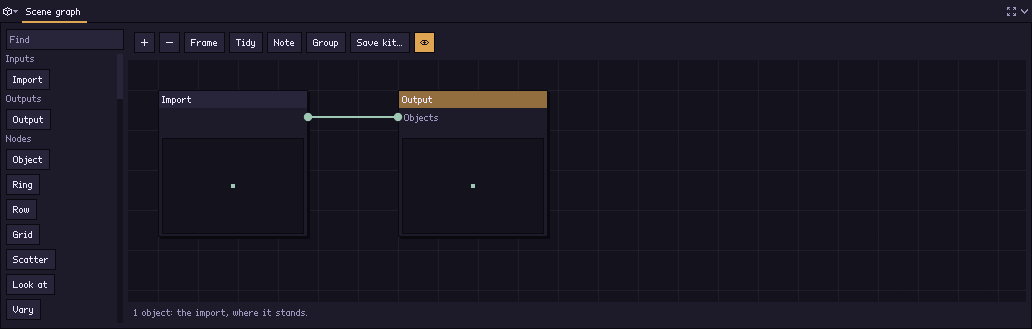
The Scene graph panel of the Scene step holds that graph. It is the same canvas as the Style step’s style graph — boxes, wires, settings in the body — with its own kind of wire, so a look node cannot be dropped into it or the other way round. Note puts a note on it, as on the style graph: your words in a box behind the nodes that moves the nodes inside it.
A project that never opens it, and adds nothing to the scene, stores no graph at all, and renders what it imported.
Everything you add to the scene is a node of this graph — another model (an item), a prop on a bone, a spring, a shape, a picture, words, a volume, a lamp, an effect, and the world’s terrain, grass, water and sky (D49). The Outliner’s + adds the node, at the end of the chain; the Outliner lists the graph’s things, and a row and its node are one thing: choosing either chooses the other, the Inspector shows it with every control it has, and deleting either deletes both. A node added from the graph’s own Add menu is a row of the Outliner at once. A thing inside a group (a kit’s lantern) is listed under a row for the group; choosing it opens the group in place and chooses the node inside it.
Every setting of these nodes is a property (see nodes): a row with a port at its left, set on the node or wired from a value. One Number value wired into a Ring’s How many and a Row’s makes both grow together. The world’s nodes (terrain, water, sky, clouds, wind…) have theirs too; what is not one number or word — whether a patch has its own colour, what else the wind moves, the times of day — stays a control on the node.
The nodes
| Node | What it does |
|---|---|
| Import | What the project imported, where it stands: the model with its props. |
| Object | The model with its props, where it stands. Whatever no node names is not rendered. |
| Item | Another model beside the import, from its file: where it stands, its turn and scale, a clip of its own. Added as a shape is: it passes its list on and adds a copy of itself (--item). |
| Prop | A model a bone of the import holds — a sword, a torch — with its place, turn and scale on the bone and the node of it the bone grips (--add-prop). Part of the model: every copy of the import carries it, so it adds no copy of its own and passes its list on. |
| Spring | A bone and everything under it swinging with the motion — hair, a cape, a tail — with its stiffness, damping and gravity (--spring). Like a prop, part of the model in every object of it. |
| Shape | One of Pixor’s own shapes — a box, a cylinder, letters — with its place, size, turn, colour and bevel on the node. It passes its list on and adds an object of itself; with nothing wired in it starts a list, so a Shape into a Ring is a ring of that shape. |
| Picture, Text | A picture on a plane, or words in a pixel font on a card (Pictures and words), added as a shape is. |
| Volume | Smoke, fire or a liquid (Volumes): one for each object of the node that reaches the Output, placed by it. |
| Lamp | A light with a place: one for each object that reaches the Output, so a Row after a lamp is a row of lamps. A lamp wired into nothing lights nothing. |
| Effect | Particles — an explosion, sparks, rain, fireflies — one for each object that reaches the Output. |
| Ring | Objects round a circle: how many, how far out, where the first one stands, and whether they face the middle. |
| Row | Objects in a line, a step apart. |
| Grid | Objects on a grid, so many across and so many deep. |
| Scatter | Objects scattered in a box, seeded, with a distance no two of them come closer than. |
| Look at | Turns every object to face a point. Turn more aims a model whose weapon is not on its forward axis. |
| Vary | Gives each object its own clip phase, turn and size, from its number and a seed. |
| Play | The clip these objects play, whatever the rest of the sheet plays: a swaying tree beside an attacking knight. They play it in every action, over the action’s frames — a windmill turning beside a still house is a new action in the Action step and a Play node on the windmill. Actions are made there, not here. |
| Seen by | The objects only one camera sees, and frames (below). |
| Merge | Two lists of objects as one. |
| Move, Mirror | Shift, turn and resize every object; add each object’s reflection about a plane. |
| Subdivide | Splits every triangle of every object into four, once or up to four times, so a Displace has points to move. |
| Displace | Pushes every object’s surface in and out by seeded noise, up to an amount in metres, with bumps a size apart. Each copy gets its own bumps, so a row of boxes is a row of different rocks. |
| Height field | Raises every object’s surface straight up by a seeded height field seen from above: after a Subdivide, a flat plane becomes rolling ground. The ground only rises. |
| Bevel | Cuts the edges of every object’s boxes at 45 degrees. |
| Drop to ground | Drops every object straight down onto the highest surface under it: the scene’s other things (or one of them) and any terrain before it in the chain, a lift above it, leaning with the slope as far as you ask. |
| On surface | Spreads objects of what it is handed over a thing’s surface, by area and seeded — only on its tops, or everywhere. |
| On points | Puts an object of what it is handed on every corner of a thing. |
| Difference | The objects in its first input with the objects in its second cut out of them where they stand: windows through a wall, a notch out of a crate. The second input is only the shape of the hole and is not rendered. |
| Join | Two lists of objects drawn as one part, so no line is drawn where they meet: a tower of boxes that reads as one building. |
| Set shape | Sets one setting of every object’s shapes — size (a multiple), width, height, depth, segments, bevel or hue — from an attribute times a number plus a number. |
| Attribute | Writes a number onto every object, for a later node to use (below). |
| Select | Keeps the objects whose attribute passes a test. |
| Output | What stands in front of the camera: the graph’s one result. |
The world’s nodes — Terrain, Sprigs, Foliage, Water, Clouds, Sky, Wind, Light shafts, Times of day and Chunks — are in the same Add menu; see Worlds. Value nodes (a number, an on/off, an angle, words and the arithmetic between them) feed the properties.
A layout node runs once per copy it was handed. A ring of rows is a row per copy of the ring. That is the whole of nesting — there is no second rule.
Variation comes from the copy’s number and the graph’s seed, never from anything else, so the same graph gives the same crowd every time, on any machine and on both backends.
Sixteen knights
Add Ring, set How many to 16 and Radius to 3, turn Face the middle off, then add Look at with Towards at the statue. Add Vary and give Clip phase 1 so they are all at different points of their walk. The number at the bottom of the canvas says how many copies the graph makes, and the sprite beside it shows them.
A statue beside them is an Item node: another model, from its file, standing where it is put. Like every thing node it hands on what it is given and adds one copy of itself, so where it stands in the chain says what repeats it: an Item after the Ring is one statue among sixteen knights, an Item before it would be sixteen statues. In the app, the Outliner’s + › An item › From a model file… puts it at the end of the chain, after the ring.
From a script, a node at a time:
pxr project scene game.pixor ring --count 16 --radius 3 --face-out
pxr project scene game.pixor look-at --at 0,0.8,0
pxr project scene game.pixor vary --phase 1 --seed 3
pxr project scene game.pixor --set ring.count=24
pxr project scene game.pixor            # prints the graph and the count
pxr graph add and pxr project scene put a node on the end of the chain.
One that makes copies of its own and takes nothing in (an Object, an
Import) starts the chain in place of the bare import, and after anything
more goes beside the chain, merged with it, so nothing that was rendered is
lost. --alone adds a node wired to nothing, and --in wires another node
into one of its inputs.
pxr graph add game.pixor --which scene --node object --set of=model           # the knight alone
pxr graph add game.pixor --which scene --node ring --set count=16 --set radius=3
pxr project set game.pixor --item statue.glb@0,0                            # an Item after the ring
An Item standing alone, wired to nothing (--alone), starts a list of its
own, which a Merge, a Scatter or a Seen by takes in. An Object names
only the model: an item, a shape and a picture are nodes of their own, and
naming one with an Object is an error.
What each camera sees
A camera frames everything the graph puts in front of it. Seen by gives one camera copies that no other camera sees, so a project with a main camera and a portrait camera can show the whole ring in one sheet and the statue in the other: join the statue’s Item, standing alone, through a Seen by portrait, to the rest with Merge. The portrait frames the statue with whatever every camera sees; the main camera never sees the statue at all.
pxr project new game.pixor --model knight.glb --force
pxr project scene game.pixor ring --count 16 --radius 3             # node 2
pxr project set game.pixor --add-camera portrait:three-quarter:64   # NAME:VIEW:SIZE[:ANGLE]
pxr graph add game.pixor --which scene --node item --set model=statue.glb --alone                   # node 3
pxr graph add game.pixor --which scene --node seen-by --set camera=portrait --alone --in objects=3   # node 4
pxr graph add game.pixor --which scene --node merge --in b=4        # the ring, and the statue for the portrait
pxr project scene game.pixor                                        # 17 objects
Here the statue’s Item is added with --alone, so it is not on the end of
the ring’s chain (pxr graph list prints the numbers); the Merge goes on the
end of the chain, so the ring comes into its first input. pxr render
writes game.png, the ring alone, and game_portrait.png, the ring round
the statue.
A graph used as one node
A ring of knights round a statue, a row of market stalls, a crowd with its variation: a scene graph can be saved as one group and used in another project. Save kit… on the bar, with no group chosen, writes the whole graph as a kit (Save the Scene graph as a kit; its Output node becomes the group’s output), and with a group chosen that group (Save the group as a kit); Use kit… (Add a kit as a group) in the canvas’s Add menu puts one in as a group. It is one box, called by its own name, and the arrow on it (or a double-click) opens it in place to see or change what it is made of; the arrow folds it again. An In node inside it stands for an input, so a saved ring can be handed copies to ring.
pxr graph save market.pixor --which scene -o stalls.pixorkit --name "Row of stalls"
pxr graph add town.pixor --which scene --kit stalls.pixorkit
pxr graph flatten town.pixor --which scene          # the nodes it stands for
A group is data, not code: it can only do what the nodes inside it do, and it renders exactly as they would.
Several sheets from one render
What is written is not this graph’s business. The Output node at the end of the chain is what stands in front of the camera, and it is the only one; a second file — an icon set, a promo still, a sheet of the lines alone — is an output of the asset graph, which takes the frames this graph’s copies were rendered into.
A scene of several models, animated
An item takes a clip too, and a phase to move it along:
pxr project new patrol.pixor \
  --item knight.glb@-0.9,0.2,-20:walk \
  --item knight.glb@0.9,0.2,-20:walk,0.45 \
  --item chest.glb@-1.8,-1.6,25,1.2
An item with a clip brings its rig and plays it; one without is baked where
it stands, which is cheaper. The clip comes from the model’s own file or from
its name@clip siblings, as everywhere else in Pixor.
Placing, reshaping and choosing
The scene graph’s nodes do more than arrange. Move shifts, turns and resizes every copy; Mirror adds each copy’s reflection about a plane.
Attribute writes a number onto every copy — its number in the list, where it stands, how it is turned, how far it is from the middle, or seeded noise — and Select keeps the copies whose attribute passes a test and drops the rest. Together they are how only the ones at the back, at half the size is said without naming which ones are at the back (z points towards the camera, so the back is the low end):
pxr project new town.pixor --model chest.glb --force
pxr project scene town.pixor row --count 6 --step 1,0,0.5
pxr project scene town.pixor attribute --name depth --from z
pxr project scene town.pixor select --name depth --how below --at 1
pxr project scene town.pixor move --size 0.5
Subdivide and Displace reshape the copies’ own surfaces: a box becomes a rock, a smooth cliff a rough one. They are settings the copies carry and their parts are built with, not triangles edited by hand, so the same graph gives the same rocks everywhere:
pxr project new yard.pixor --add-shape rock=box:0.5 --size 64
pxr project scene yard.pixor row --count 3 --step 1.4,0,0
pxr project scene yard.pixor subdivide --times 3
pxr project scene yard.pixor displace --amount 0.12 --bumps 0.35 --seed 4
Drop to ground, On surface and On points read the scene the graph places things in. A scatter in a box becomes a scatter on a hill when a Drop to ground comes after it and the terrain is in its list:
pxr project new hill.pixor --model chest.glb --terrain 12:24:2                       # the terrain is node 2
pxr graph add hill.pixor --which scene --node object --set of=model --alone          # node 3
pxr graph add hill.pixor --which scene --node scatter --alone --in objects=3 --set count=14
pxr graph add hill.pixor --which scene --node merge --in b=4
pxr graph add hill.pixor --which scene --node drop-to-ground
and candles stand on every corner of a crown with the candle’s Shape node and On points of the crown. The canvas counts On surface’s copies before anything is built; On points’ count is known once the scene is.
Difference cuts with whatever it is handed second, where it stands: a small box, in a Row of three, through a long wall is a wall with three windows. The inside of a hole is lined in the colour most of the part is drawn in. A part bound to a rig (a skinned model, a shape on a bone or a keyed shape) is not cut, since a cut changes vertices the rig was given, and neither is one of more than 5,000 triangles.
pxr project new house.pixor --add-shape wall=box:4,2,0.2 --size 96      # the wall, node 2
pxr graph add house.pixor --which scene --node shape --set name=window --set size=0.4,0.5,0.4 --set at=-1.2,0.1,0 --alone   # node 3
pxr graph add house.pixor --which scene --node row --alone --in objects=3 --set count=3 --set step=1.2,0,0                 # node 4
pxr graph add house.pixor --which scene --node difference --in "cut by=4"
pxr render house.pixor -o out/house.png
A shape stands centred on its at, so the first window is 1.2 m left of
the wall’s middle and the Row puts the other two 1.2 m apart from it, all
three inside the 4 m wall.
The shapes Pixor builds have settings of their own, and Set shape drives them from the graph: a row of crates, each taller than the last and a little further round the colour wheel, is the crate’s Shape node, a Row, an Attribute of where each copy stands along the row, and two Set shapes.
pxr project new crates.pixor --add-shape 'crate=box:0.5:0,0,0:#c86432' --size 64   # an orange crate alone
pxr project scene crates.pixor row --count 5 --step 1.1,0,0
pxr project scene crates.pixor attribute --name x --from x
pxr project scene crates.pixor set-shape --setting height --from x --times 0.15 --plus 0.5
pxr project scene crates.pixor set-shape --setting hue --from x --times 40
pxr project scene crates.pixor bevel --width 0.06
pxr render crates.pixor -o out/crates.png
The crates stand at 0 to 4.4 m, so they grow from 0.5 m to about 1.2 m and turn from orange through yellow and green to teal. Hue turns a colour, so it shows on a coloured shape; a grey one stays grey.
A shape’s settings are applied before any Subdivide or Displace, whatever order the nodes are in, because a shape built again from its settings starts from its own surface. Only shapes standing on their own take them; a shape hanging on a bone is part of the model.
A part bound to a skin or carrying morph targets is displaced but not subdivided, because a new point in the middle of an edge has no honest weights; nor is a part that sways in the wind.
A copy differs from its neighbours by its number, its attributes and a seed, or not at all — never by being named, because naming one would make the graph a scene file.
Blueprints
A project points at this model. A blueprint is the same thing with the paths lifted out and given names and types — the look, the graph above, the clips and the exports — so one recipe runs over a folder of models instead of being copied twenty times and edited each time.
Project › Save as blueprint… writes a .pixorblueprint. Opening one
(Project › Open project…) asks for its inputs and then behaves like any
project; what comes out is untitled, so
saving it cannot write over the recipe.
From the command line:
pxr project blueprint game.pixor -o four-way.pixorblueprint
pxr run four-way.pixorblueprint --in model=hero.glb -o out/hero.png
pxr batch models/ --blueprint four-way.pixorblueprint --out out/
pxr run four-way.pixorblueprint --in model=hero.glb --set ring.count=12
pxr graph set four-way.pixorblueprint --which style --node 0 --set dither=0.5   # change the recipe itself
--set NODE.SETTING=VALUE changes one setting of one node: in the scene
graph if it has that node, else in every Asset pipeline and Style
that has it (--set hold.times=4: every Asset pipeline’s Hold node). --set PIPELINE/NODE.SETTING=VALUE changes
it in that pipeline alone. A node is named by its label in lower case, with
hyphens between the words (ring for a Ring, look-at for a Look at:
pxr project scene prints them); the label itself ("Look at") works too.
Each Style’s palette file is a slot of its own: palette for the first
Style, palette:NAME for another. A missing or
wrongly typed slot names the slot and the type it wanted, before anything
is loaded.
Pixor ships a few in assets/blueprints/: a four-sided character sheet,
an inventory icon and a promo still.
What changed since the last build
Every export carries a recipe (how the sheet was made), so two builds can be compared without a build database:
pxr diff out-yesterday/ out-today/It says which files are new, which are gone, which differ and by how many pixels — and which setting, which input or which blueprint caused it:
changed  ring.png     36598 of 82944 pixels (44.12%)
         scene.nodes[3].settings.count: 16 -> 12
--exact exits 1 on any change, for a build that should be reproducible.
The layers an export writes
Paper-doll pieces, the shadow sheet and parallax layers are separate files. In the Asset step’s 2D View, All, stacked in the Layer select stacks a sheet’s layers back to front, as an engine will: a toggle per layer, and a line saying whether every layer is the size of the base. Nothing has to be exported first: the layers are drawn from the frames already rendered, by the code that writes them, arranged as the chosen sprite sheet output lays them out — the finished sprite (base), its shadow, lines, flat colours, normals, depth, emission and the style graph’s extra outputs. The sprite and its shadow are on to begin with; a normal map over the sprite would hide it. From the files reads back what an export actually wrote instead — the same files an engine will load, paper-doll pieces and parallax layers included.
What this page describes is in the full version; the free browser demo keeps to the default look and the PNG sheet.
Try in browser Get Pixor