3D to pixel art in Unity
There are two ways to get pixel art out of 3D models in a Unity game: draw the 3D scene at a low resolution in real time, or render the models to sprite sheets first and use them as 2D sprites. Here is when each fits, and every Unity setting the sprite route needs.
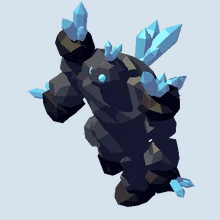
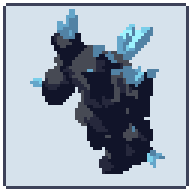

Two ways to do it
Real-time pixelation. The 3D game is drawn at a low resolution and scaled up with no smoothing. In Unity: give the camera a Target Texture, a Render Texture of, say, 320 × 180 with Filter Mode: Point, and show that texture full-screen on a Raw Image in a Canvas. Everything stays 3D: any angle, any number of characters, physics as usual. The cost is the look: edges shimmer as models move, colours are whatever the lighting makes, and lines and clean shapes need shader work of their own.
Pre-rendered sprite sheets. Each model is rendered beforehand from the sides the game needs, frame by frame, and cleaned into pixel art: a palette, outlines, no stray pixels. Unity then treats them as ordinary 2D sprites. You get steady, hand-made-looking pixel art and a plain 2D project, but only the sides and frames you rendered. This is how pre-rendered sprites have always worked, from Donkey Kong Country to Dead Cells.
Use real-time pixelation when the camera must turn freely or the world is one big 3D scene. Use sheets for characters, enemies, items and effects in a 2D game, top-down, side-on or isometric. Many games mix them: a pixelated 3D world with pre-rendered characters.
A real-time 3D pixel-art shader in Unity
There is no single “pixel art shader” in Unity. The look comes from four pieces working together, each simple on its own.
1. Draw at a low resolution. Give the 3D camera a Render Texture of, say, 320 × 180 with Filter Mode: Point and Anti-aliasing: None, and show it full-screen on a Raw Image, scaled by a whole number. This alone makes the pixels; everything else decides what goes in them.
2. Band the light and map it to a ramp. Smooth Lambert shading gives every pixel its own shade, which reads as a blurry render, not pixel art. In the material’s shader (Shader Graph or HLSL), cut the light into a few flat steps and look each step up in a small ramp texture, so every lit pixel is one of a few chosen colours:
float ndl  = saturate(dot(normalWS, lightDirWS));      // 0 turned away, 1 facing the light
float band = min(floor(ndl * _Bands), _Bands - 1);     // 0 .. _Bands - 1
float u    = (band + 0.5) / _Bands;                    // the middle of that texel
half3 col  = SAMPLE_TEXTURE2D(_RampTex, sampler_RampTex, float2(u, 0.5)).rgb;
_RampTex is _Bands pixels wide with Filter Mode: Point, darkest on the left. Shift the hue along it, cooler in the shadows and warmer in the light (hue shifting), and the scene stops looking grey.
3. Outlines one pixel wide. Draw them in a full-screen pass over the low-resolution image (URP’s Full Screen Pass Renderer Feature with a material of your own): where depth jumps or normals turn sharply between neighbouring pixels, draw a dark pixel. Done at the low resolution, every line is exactly one art pixel wide.
4. Stop the shimmer. When the camera glides, the scene slides across the low-resolution grid and edges crawl pixel by pixel. Move the camera only in whole low-resolution pixels: snap its position, along its own right and up axes, to multiples of one pixel (orthographic size × 2 ÷ texture height, in world units), then shift the scaled-up image by the part that was snapped away so the motion stays smooth.
What a real-time shader cannot do is what an offline render does between frames: hold lines and light bands steady as a character animates, remove stray single pixels, keep a pivot on one pixel. That is why characters and items in such games are often still sprite sheets. Pixor’s own real-time 3D look shader is for Godot 4 (3D pixel art shader in Godot); for Unity it makes the sheets and a palette-correct light shader for them, below.
Rendering the sheet
- Import the model into Pixor: glTF or GLB, FBX (Mixamo too), OBJ or MagicaVoxel.
- Cameras. One camera per side: Ring round the model gives 4, 8 or 16. Set one Pixels/m for every model so pixels match in the game.
- Look. In the Style step pick a Preset, a palette and outlines.
- Export a PNG sheet with its JSON, or an Aseprite file. Tick Light kit too if sprites should react to light in Unity (below).
From the command line the same export is:
pxr render knight.glb --size 48 --ring 8 --export json,aseprite -o Assets/Sprites/knight.pngImporting into Unity
With the Aseprite Importer (the 2D Aseprite Importer package): drop knight.aseprite into Assets. Each tag, one per action and side, becomes an animation clip. Use the final layer.
As a PNG sheet, select knight.png and set in the Inspector:
| Setting | Value |
|---|---|
| Texture Type | Sprite (2D and UI) |
| Sprite Mode | Multiple |
| Pixels Per Unit | the same number for every sprite (see below) |
| Filter Mode | Point (no filter) |
| Compression | None |
Then open the Sprite Editor, choose Slice › Grid By Cell Size, and type the cell size from knight.json, under meta.pixor.cell (for example 48 × 48). A clip whose effect counts toward the fit has bigger cells of its own: slice its row by its frames’ pixor.cell and take its pivot from their pixor.pivot, or import the .aseprite file, whose canvas holds every clip lined up on the pivot.
The pivot. meta.pixor.pivot is the pixel the character stands on, counted from the cell’s top-left, and it is the same pixel in every frame and side, so the sprite does not jitter as it animates. Unity counts a pivot from the bottom-left, so in the slice settings choose Pivot: Custom and enter x / width and 1 − y / height. A pivot of (24, 40) in a 48 × 48 cell is (0.5, 0.167).
Pixels Per Unit and the Pixel Perfect Camera
Give every sprite the same Pixels Per Unit, or two sprites side by side will have different pixel sizes (mixels). If one Unity unit is a metre, the simplest choice is Pixor’s Pixels/m: a sprite rendered at 32 pixels per metre gets a Pixels Per Unit of 32, and a 2 m golem stands 2 units tall.
For crisp pixels at any window size, add the Pixel Perfect Camera component (in URP’s 2D renderer) to the camera:
- Assets Pixels Per Unit: the same number as the sprites.
- Reference Resolution: your game’s base resolution, such as 320 × 180 or 480 × 270, which scale by whole numbers to 1920 × 1080 (sprite sizes has the table).
- Crop Frame and Grid Snapping as your project needs: snapping keeps sprites on the pixel grid while they move.
Animating it
Select the frames of one action and side in the Project window and drag them into the Scene: Unity makes an Animation Clip and an Animator for them. Set the clip’s sample rate to the frame rate the sheet was rendered at. For eight sides, make a clip per side and pick it from the movement direction, with a Blend Tree on the direction or a few lines of code.
Light that keeps the palette
Unity’s 2D lights shade a sprite smoothly from its normal map, which brings in colours your palette never had. With Light kit ticked, Pixor writes the sheet’s colour ramps, normals and a light lookup texture beside it, and PixorPaletteLight.shader, a shader for Unity’s Sprite Renderer. Make a material with it and set its three maps (Ramps, Normals, Light lookup): the sprite then reacts to the light direction you give it while every lit pixel stays on a step of its own ramp. The normal maps guide explains the maps.
Related
- 3D to pixel art: the complete guide and pre-rendered sprites
- GLB, FBX or OBJ to a sprite sheet
- The export manual, Unity section
Questions
How do I make 3D look like pixel art in Unity?
Either render the 3D camera into a small Render Texture with point filtering and show it scaled up, which pixelates the scene in real time, or render your models to pixel-art sprite sheets beforehand and use them as 2D sprites. Real-time pixelation keeps the 3D freedom; sheets give cleaner, steadier pixel art.
Is there a pixel art shader for 3D in Unity?
Not one built in. The usual real-time setup is a camera drawing into a small Render Texture with point filtering, a material shader that bands the light into a few flat steps and maps them to a colour ramp, a full-screen outline pass on depth and normals, and a camera that moves in whole low-resolution pixels so the image does not shimmer.
Why are my pixel-art sprites blurry in Unity?
The texture is filtered or compressed. In the sprite's import settings set Filter Mode to Point (no filter) and Compression to None, and draw it at a whole-number scale, for example with the Pixel Perfect Camera.
What Pixels Per Unit should pixel-art sprites use?
One number for every sprite in the game. If one Unity unit is a metre, use the sprite's pixels per metre: with 32 pixels per metre, a 1.8 m character is about 58 pixels tall and stands 1.8 units tall in the scene.
Does Pixor have a real-time shader for Unity?
It exports a palette-correct lighting shader for sprites in Unity, so baked sprites react to light while staying on their colour ramps. Its real-time 3D look shader is for Godot 4.