Anticipation and follow-through: give a jump weight
A 3D clip that looks fine in 3D often floats once it is a few pixels tall: no crouch before the take-off, a landing with no weight. The Timing node adds what a hand animator would, from how fast each part moves.
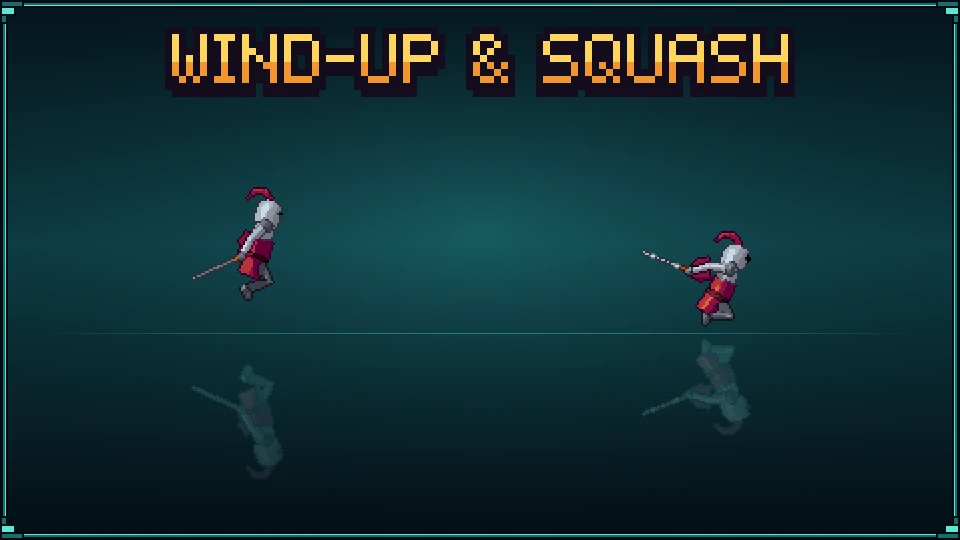

Sample project
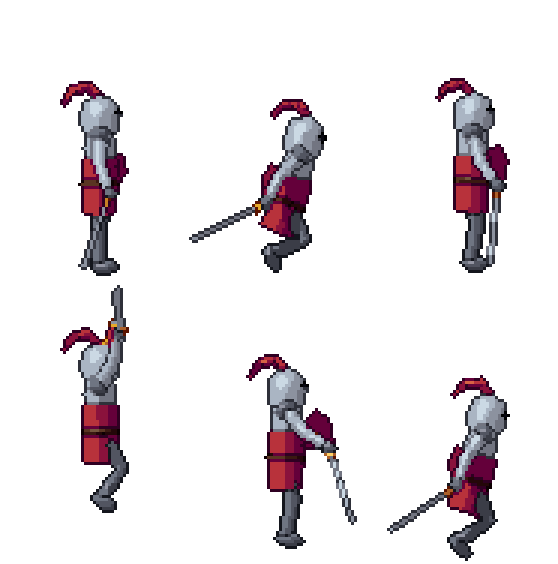
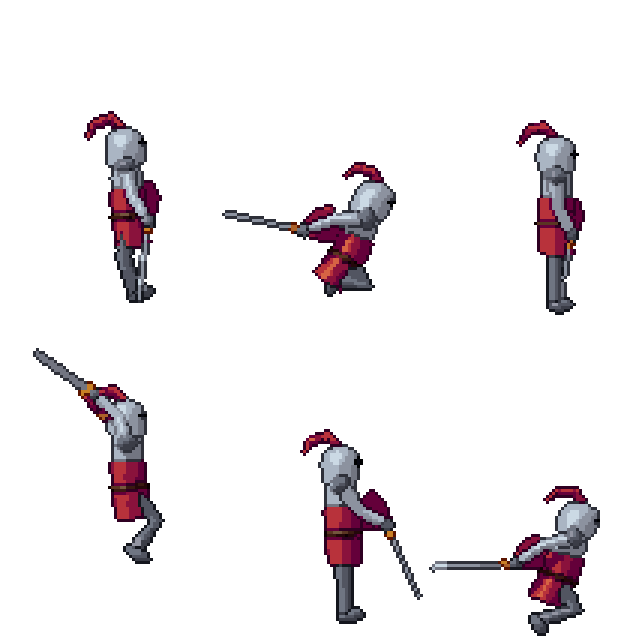
Anticipation and follow-through: a knight's jump with a Timing node: the .pixor project and its library model (CC0). The sheet on the left is what it renders.
Beginner · about 5 minutes · or watch it in 91 seconds
1. A side-view camera
Open a rigged model: the tutorial uses the knight from the free CC0 library. In the Scene step, click the South camera in the Outliner and set the Game view to Platformer.
2. One fixed scale
Set the camera’s Size to Pixels per metre and type 34. A camera fitted to the model rescales it to hold everything the action does, so a deeper crouch would shrink the sprite; at a fixed scale the knight keeps its size and the canvas grows round it.
3. A library jump
In the Action step, choose Add an action › Library clip: jump. Watch it in the Style step’s 2D View: it plays, but it floats. The knight leaves the ground without crouching and lands without weight.
4. Add a Timing node
Back in the Action step, select the Clip node in the Action graph, choose Add an action node and pick Timing (under Filters). It goes after the clip and works out the rest from how fast each part moves:
- Wind-up (anticipation): just before a part moves fast, it first moves a little the other way.
- Overshoot (follow-through): when a fast move stops, the part goes a little past and settles back.
- Squash: where a fall stops, the model flattens and widens for a moment and springs back.
5. Its settings
The node’s fields are its settings: Strength (1; 0 is the clip as it comes, 2 twice as much), Wind-up, Overshoot and Squash (each 1; 0 is none) and Seconds, how long a wind-up and a settle take (0.1). The tutorial sets Strength to 1.5. The same numbers give the same frames every time.
6. With weight
In the Style step the jump now crouches before the take-off and squashes on the landing. Judge it frame by frame with the 2D View’s Onion skin (O) or What changed (D).
7. Export
Add a File: GIF per clip output from the node library in the Asset step, then Export: the sheet, its JSON and a GIF of the jump.
From the command line
--timing puts a Timing node on every clip of a render: a strength, then any setting by name.
pxr render knight.glb --camera platformer --pixels-per-metre 34 --clip lib:jump --timing 1.5
pxr render hero.glb --clip attack --timing 1.5,squash=0,time=0.08
pxr project set game.pixor --timing overshoot=2
pxr project set --no-timing takes them out again.
Next
- Animation timing: holds, frame counts and how long a frame should stay.
- Sub-pixel animation: a breath smaller than a pixel.
Questions
Does the Timing node change where the poses end up?
No. Every pose the clip holds still is held exactly, and nothing ends anywhere other than where it did. Only the moves between them get a wind-up before and an overshoot after.
Does it work on Mixamo or other captured clips?
Yes. It reads how fast each part moves, so any clip works: a library clip, a Mixamo download, keys you set yourself. Slow moves are left almost as they are; fast ones get the most.
Will a looping walk still loop?
Yes. In a looping action the effect wraps round the loop, so a move at the start winds up at the end of the previous go and the loop stays seamless.
Why does my sprite get smaller when I add the Timing node?
A camera fitted to the model makes room for the deeper crouch and the squash. Set the camera's Size to Pixels per metre and the scale stays fixed, whatever the motion does.