A Mixamo character in eight directions
Mixamo gives you a rigged character and a large set of animations. Pixor reads its FBX files as they are, so the path from download to an 8-direction sheet is short.
Sample project
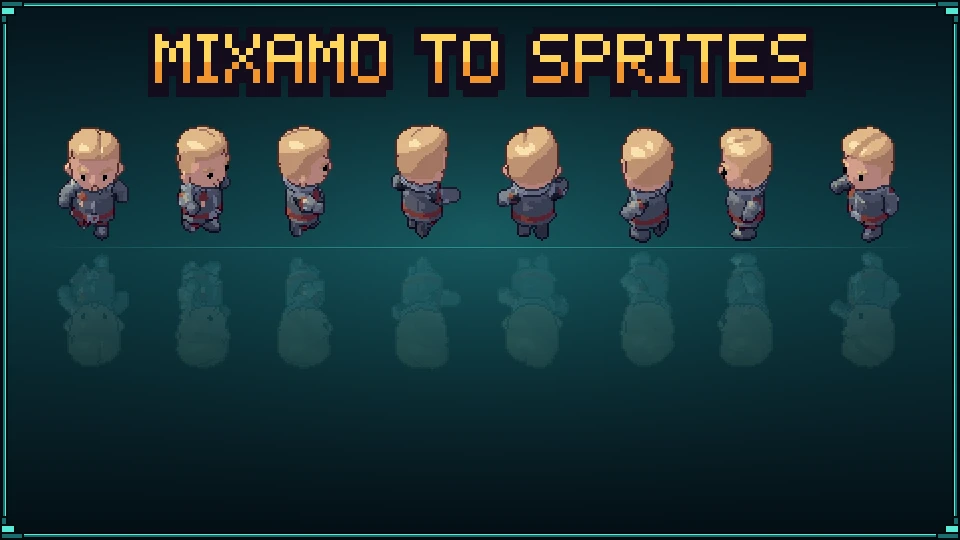
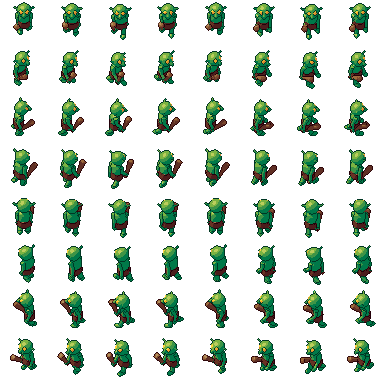
An 8-direction walking character: the .pixor project and its library model (CC0). The sheet on the left is what it renders.
Intermediate · about 15 minutes · or watch it in 81 seconds
Before you start: Mixamo is a service from Adobe with its own terms. Check them for what you plan to make. Pixor does not include Mixamo content; you bring your own downloads.
1. Download the character
On Mixamo, pick a character, then a first animation, such as an idle. Click Download and choose:
- Format: FBX
- Skin: With Skin
Save it with a clear name, for example hero.fbx.
2. Download more animations
Pick each extra animation you want: walk, run, attack, hit. For these, choose FBX and Without Skin. Name them after the character and the clip, such as hero@walk.fbx and hero@run.fbx, and keep them in the same folder.
3. Import
Drag hero.fbx onto Pixor. Mixamo FBX files work as they are: no export through another program, no renaming of bones. The model’s Import section says how many bones and clips arrived.
Clips in files named after the model are often found on their own. If any are missing, open the Action step and use Clips from a file… under the Actions list to add them. Each becomes an action of its own.
4. Eight cameras
In the Scene step, click South in the Outliner. Set Game to Top-down RPG, then Ring round the model to 8. Pixor adds a camera per side: South, Southeast, East, Northeast, North, Northwest, West and Southwest.
They share one view, pitch and size, so the eight directions share one sheet, one palette and one pixel scale. Set Width and Height so the character fits with a little room for a swinging arm, around 48 to 64 px for a full-body character.
5. Keep it in place
Many Mixamo walks and runs move the character forward. In the Action step, select the walk and, in its Inspector, keep the root motion in place. The sprite stays on its pivot, and the offset is exported for your engine to use. Do the same for every moving clip.
6. Choose the frames
Mixamo clips are smooth, with far more frames than pixel art wants. Open the Asset step and select the Sprites node. Press Smart frames, then set Kept frames to about 6 for a walk. Pixor keeps the pose extremes and holds each one until the next. For an idle, 4 is often enough. See animation timing for counts that work.
7. Look and check
In the Style step, pick a look. Play each action in the 2D View and look at all eight sides. Light bands hold until a surface has clearly turned, so the walk should not flicker.
8. Export
Click Export. The sheet has one row per action and side. For Godot, add the Godot SpriteFrames output (guide); for touch-ups, add the Aseprite file with a tag for every side (re-bakes keep your paint).
Next
- An 8-direction walking character: the same steps with the free crystal golem.
- Recolour variants: one sheet, many palettes.
- Top-down RPG sprites.
Questions
Can I use Mixamo characters and animations in my game?
Mixamo has its own terms of use, set by Adobe. Read them before you ship anything made from Mixamo content. Pixor does not include any Mixamo content.
Should I tick In Place on Mixamo?
Either works. If the clip moves the character forward, keep it in place in the action's Inspector in Pixor; the offset is exported for your engine.
Why With Skin for one file and Without Skin for the rest?
The character file carries the mesh and the skeleton. Animation files only need the motion, so leaving the skin out keeps them small. They all share the same skeleton.