A pixel-art character turnaround sheet
A turnaround shows one character from every side at the same size, so anyone who draws, animates or codes it sees the same thing. From a 3D model, Pixor makes the whole sheet with one command.
What a turnaround is for
A character turnaround (also called a model sheet or a reference sheet) puts one character on one page from several sides, standing on one line, all at one scale. It answers the questions that come up as soon as more than one person touches a character: how tall is the helmet, which hand holds the sword, what does the back of the cape look like, which colours are allowed.
For pixel art it has two more jobs. It fixes the size in pixels, so the next sprite drawn for the game is the same size as this one, and it fixes the palette, so new frames and touch-ups stay on the same colours. Turnarounds go into pitches, commission briefs, wikis, pack pages and the hand-over to another artist.
Why a 3D model makes it easy
Drawn by hand, the hard part of a turnaround is agreement: the shoulders must sit at the same height in every view, the feet on the same line, and the side view must be as tall as the front. Artists draw guide lines across the page for that and still have to check each view.
From a 3D model, the views agree because they are one model seen from four directions. Every view is rendered at the same pixels per metre, so a character 1.8 m tall is the same number of pixels tall from every side, and every other model rendered at that scale can stand beside it.
Make one in Pixor
pxr turnaround takes a model or a project and writes the sheet:
pxr turnaround knight.glb --preset selout --with golem.glb -o knight-sheet.png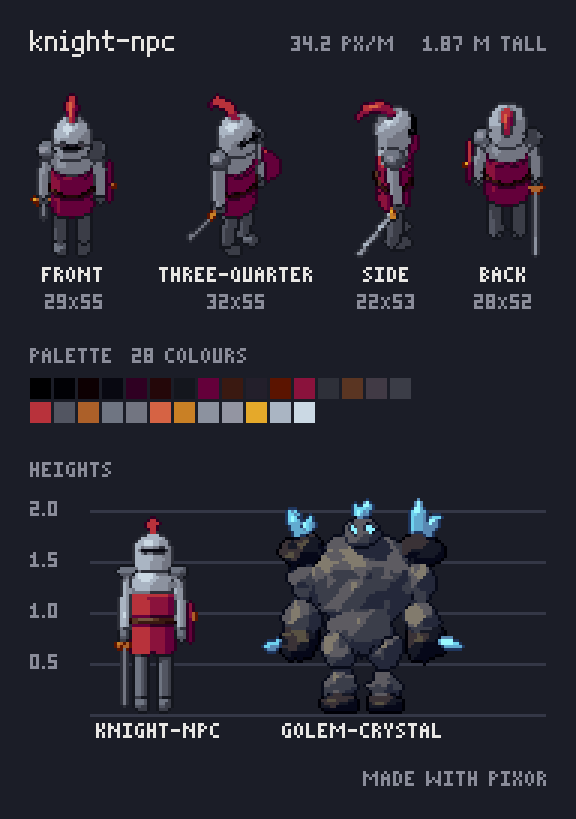
The page it writes holds:
- Four views: front, three-quarter, side and back, feet on one line, each with its size in pixels underneath (29×55, 32×55 for the knight above).
- The palette, dark to light, with the number of colours.
- A height chart with a rule every half metre, the character beside every model named with
--with, all at the same scale and seen level, so the rules are true. - The scale in the title row: pixels per metre and the character’s height in metres.
- A small “Made with Pixor”.
Next to the page, knight-sheet.json gives the scale, each view’s size, the palette as hex and the heights, for a wiki or a build script.
Choose the size
By default the character is drawn 64 pixels tall. Two flags change that:
--height 48draws it 48 pixels tall, whatever its size in metres.--ppu 32draws it at 32 pixels per metre instead, so a turnaround of every character in the cast at the same--ppushows them at their real sizes relative to each other. Use the pixels per metre your sprites are rendered at; the sprite sizes guide helps pick one.
The page is drawn in whole pixels and scaled up three times for viewing; --page-scale 4 makes it larger, still without blurring a pixel. --title "Sir Ash" names the page (it defaults to the file’s name) and --background "#1e2433" changes the slate behind it.
Keep the look of your sprites
A model takes any of the look flags of pxr render: --preset selout for selective outlines, --palette for a fixed palette, --bands, --line-colour and the rest. A project brings its own model and its own Style, so the sheet shows exactly the look the game’s sprites have:
pxr turnaround hero.pixor --height 48 -o hero-sheet.pngThat is the most useful form: when the model or the look changes, run the same line again and the sheet is up to date. Nothing on it is drawn by hand, so there is nothing to redraw.
Compare characters
Each --with adds a model to the height chart, at the same scale:
pxr turnaround knight.glb --with golem.glb --with mech.glb --ppu 34 -o cast.pngThis is how a cast is checked before any sprite is made: whether the boss towers over the hero as much as it should, whether a small enemy still reads at that size, whether two characters of the same height really are. If a model comes out the wrong size, fix it in the model file or its import scale, not on the sheet.
Then make the sprites
The turnaround describes the character; the sprites are what the game loads. With the same model and the same look, the eight-direction tutorial renders every side of a walk, and the Mixamo tutorial does it for a downloaded character. The manual lists every option of the command.
Questions
What views should a character turnaround have?
Front, three-quarter, side and back is the usual set for a game character. A top-down game may add the other diagonals; Pixor's sprites themselves can have 4, 8 or 16 sides, while the turnaround sheet keeps the four that describe the character.
Can I make a turnaround without a 3D model?
Yes, by drawing each view by hand on guide lines for the head, shoulders, waist and feet. From a 3D model the views agree by construction, which is the hard part when drawing them.
Does the turnaround match the sprites in the game?
It uses the same look flags as pxr render, or a project's own look, so with the same settings the views are drawn the way the sprite sheet is. Use --ppu with the pixels per metre of your game to draw it at the game's scale.