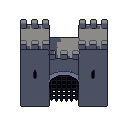
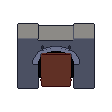
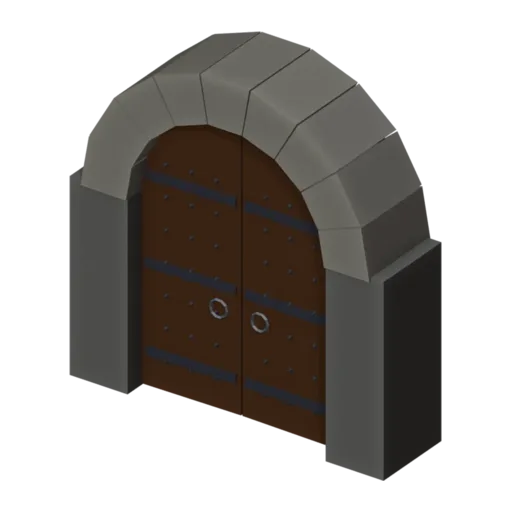
Castle door free 3D model & sprite sheet
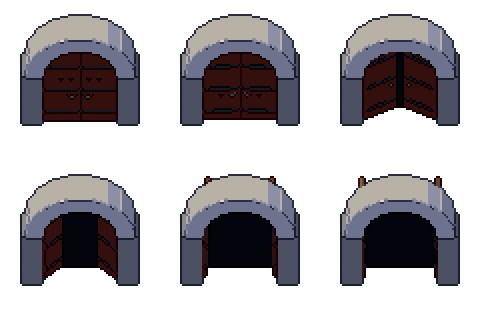
2D pixel art by Pixor, from the 3D model
3D the model it was rendered from

GIFs to share
For a devlog, a post or a Discord message. CC0 like the rest: no credit needed.
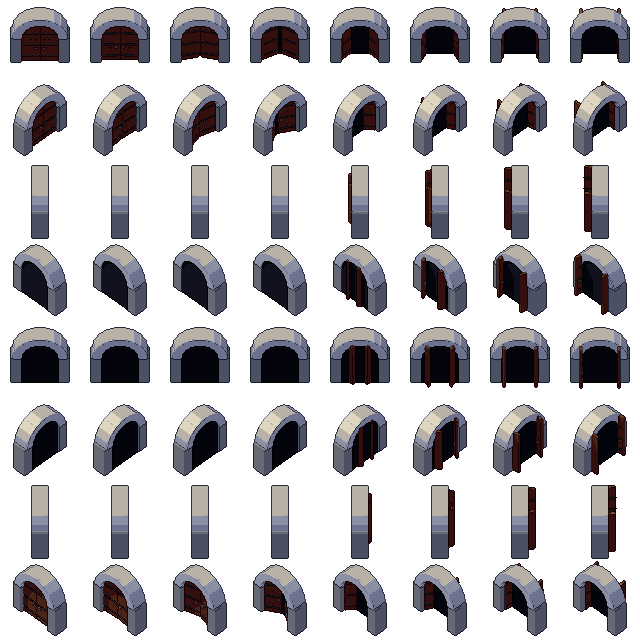
A free castle door for pixel-art games: a low-poly 3D model (792 triangles) with its Blender file, and pixel-art sprite sheets rendered from it by Pixor at 80 px. It comes with a open animation, rendered for every side.
Built in Blender with two hinge pivots, arched leaves from extruded outlines and studs as tiny four-sided cones. Parts and materials are named, so you can recolour it by changing a material’s colour, or edit it before rendering your own sprites.
Good for castles, sieges, keeps and medieval levels. It stands on the ground at real-world size, centred, facing the front, so it drops straight into a scene next to the other props.
Use it in your game
- Godot 4:
godot/castle-door-selout-80.tresis aSpriteFramesresource with 8 animations (Open_South, Open_Southeast … Open_Southwest): drop it on anAnimatedSprite2Dand playOpen_South. - Aseprite:
aseprite/castle-door-selout-80.asepritehas a tag for each of those, 64 frames in all, to touch up by hand; its.jsonsits next to it. - Unity, GameMaker and the rest:
sprites/selout/castle-door-80px-8-sides.pnghas 8 rows of 80×80 px cells, one per action and side, South (front) first. A 4-side sheet and the 32, 48 and 64 px sizes are next to it. - Posts and devlogs: the GIFs above, also in the zip’s
gifs/folder. - 3D: the GLB opens in Blender, Godot, Unity and three.js. The
.blendkeeps its modifiers, named parts and materials.
How this look was made
The sprite above is Pixor’s selective outline look. In Pixor every step of a look is a node you can change: the light bands, the outlines, the palette. This is that look’s Style graph:

- dither
- 0
- fill
- 0
- hysteresis
- 0.05
- min highlight
- 2
- rim
- none
- shadows
- on
- specular
- 0.96

- convex
- none
- crease
- selout1
- crease angle
- 55
- depth jump
- 2.5
- inner
- selout2
- min inner line
- 3
- outer
- selout3
- outer inside
- off
- part lines
- on


The other looks in the player (clean, retro, flat) are other Style graphs. With Pixor you can open this asset, change any node, and render your own.