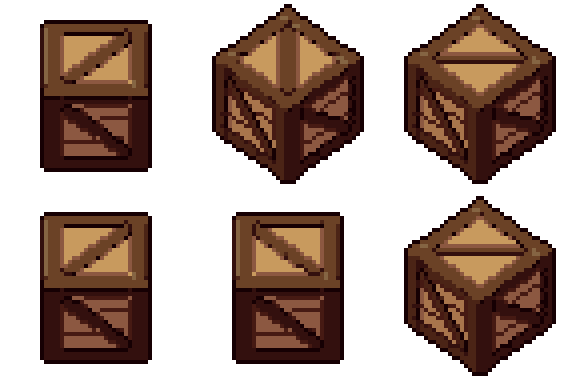
Crate free 3D model & sprite sheet
2D pixel art by Pixor, from the 3D model
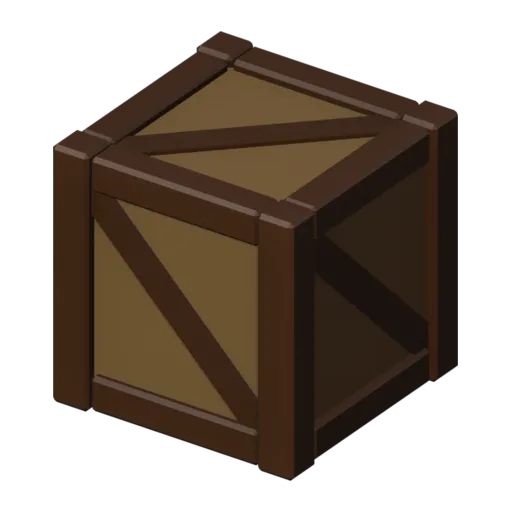
3D the model it was rendered from

A GIF to share
For a devlog, a post or a Discord message. CC0 like the rest: no credit needed.
A wooden crate with plank panels set into a dark bevelled frame and a diagonal brace across every side. It is a still prop rendered at 48 pixels from a three-quarter view, with clear edges that make it easy to read when stacked or scattered.
Each panel is made of three boards stacked edge to edge as separate parts, so Pixor draws a seam between them on every side. The frame uses a Bevel modifier, and the panels sit slightly recessed behind it. The braces sit behind the rails, so nothing shares a plane and the lines stay clean.
Crates are platforms in platformers, breakable containers in action games, pushable blocks in puzzle levels and cover in shooters. A pile of them makes a dock, warehouse or market stall look busy. Stack them at different heights to build simple climbing routes in a side-view level.
Change the Light wood or Dark wood material for weathered grey or painted crates, perhaps with a different colour for each kind of cargo. Combine with the barrel for storage, the explosion when one breaks, and the coin or potion as what falls out.
Use it in your game
- Godot 4:
godot/crate-selout-48.tresis aSpriteFramesresource with 8 animations (Static_South, Static_Southeast … Static_Southwest): drop it on anAnimatedSprite2Dand playStatic_South. - Aseprite:
aseprite/crate-selout-48.asepritehas a tag for each of those, 8 frames in all, to touch up by hand; its.jsonsits next to it. - Unity, GameMaker and the rest:
sprites/selout/crate-48px-8-sides.pnghas 8 rows of 48×48 px cells, one per action and side, South (front) first, 100 ms a frame. A 4-side sheet and the 32 and 64 px sizes are next to it. - Posts and devlogs: the GIFs above, also in the zip’s
gifs/folder. - 3D: the GLB opens in Blender, Godot, Unity and three.js. The
.blendkeeps its modifiers, named parts and materials.
How this look was made
The sprite above is Pixor’s selective outline look. In Pixor every step of a look is a node you can change: the light bands, the outlines, the palette. This is that look’s Style graph:

- dither
- 0
- fill
- 0
- hysteresis
- 0.05
- min highlight
- 2
- rim
- none
- shadows
- on
- specular
- 0.96

- convex
- none
- crease
- selout1
- crease angle
- 55
- depth jump
- 2.5
- inner
- selout2
- min inner line
- 3
- outer
- selout3
- outer inside
- off
- part lines
- on


The other looks in the player (clean, retro, flat) are other Style graphs. With Pixor you can open this asset, change any node, and render your own.