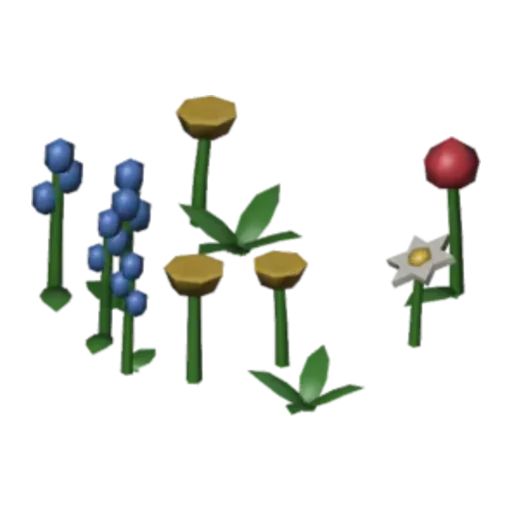
Flower patch free 3D model & sprite sheet
2D pixel art by Pixor, from the 3D model
3D the model it was rendered from

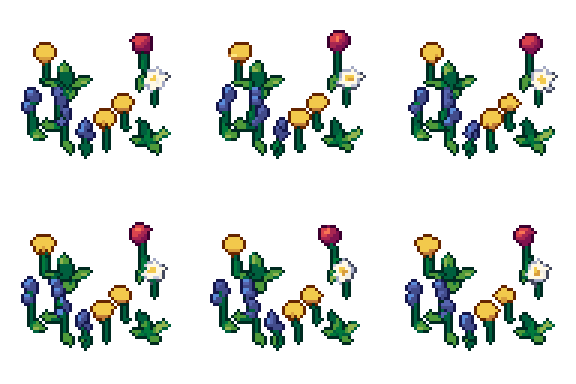
GIFs to share
For a devlog, a post or a Discord message. CC0 like the rest: no credit needed.
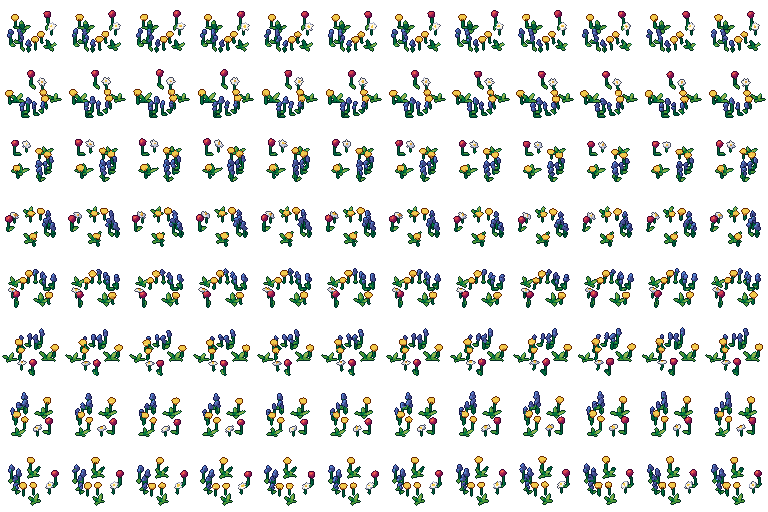
A small meadow patch of red tulips, white daisies, blue bluebell spikes, yellow buttercups and leaf tufts. The Sway loop bends the whole patch in the wind, and the sprites are rendered at 64 pixels from a three-quarter view. It adds colour to grass in a way single plants cannot.
The five flower and leaf shapes are scattered by a live Geometry Nodes modifier, so Count, Radius and Seed all change the patch. After the scatter, the result is skinned to a wind bone, which bends every stem at once. Skinning after Geometry Nodes is the trick here, and the Blender file shows how it is done.
Flower patches decorate meadows, gardens and village squares in farming sims, cosy games and RPG overworlds. Render a few seeds for variety and place them in loose groups. A sparse patch suits a path edge; a dense one makes a garden bed.
Change the flower materials to make a single-colour bed, such as all red tulips for a manor garden. Pair the patch with the grass tuft and bush for natural ground cover, and with the fence and small house for a cottage front garden.
Use it in your game
- Godot 4:
godot/flowers-selout-64.tresis aSpriteFramesresource with 8 animations (Sway_South, Sway_Southeast … Sway_Southwest): drop it on anAnimatedSprite2Dand playSway_South. - Aseprite:
aseprite/flowers-selout-64.asepritehas a tag for each of those, 96 frames in all, to touch up by hand; its.jsonsits next to it. - Unity, GameMaker and the rest:
sprites/selout/flowers-64px-8-sides.pnghas 8 rows of 64×64 px cells, one per action and side, South (front) first. A 4-side sheet and the 32 and 48 px sizes are next to it. - Posts and devlogs: the GIFs above, also in the zip’s
gifs/folder. - 3D: the GLB opens in Blender, Godot, Unity and three.js. The
.blendkeeps its modifiers, named parts and materials.
How this look was made
The sprite above is Pixor’s selective outline look. In Pixor every step of a look is a node you can change: the light bands, the outlines, the palette. This is that look’s Style graph:

- dither
- 0
- fill
- 0
- hysteresis
- 0.05
- min highlight
- 2
- rim
- none
- shadows
- on
- specular
- 0.96

- convex
- none
- crease
- selout1
- crease angle
- 55
- depth jump
- 2.5
- inner
- selout2
- min inner line
- 3
- outer
- selout3
- outer inside
- off
- part lines
- on


The other looks in the player (clean, retro, flat) are other Style graphs. With Pixor you can open this asset, change any node, and render your own.