Oak tree free 3D model & sprite sheet
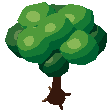
2D pixel art by Pixor, from the 3D model
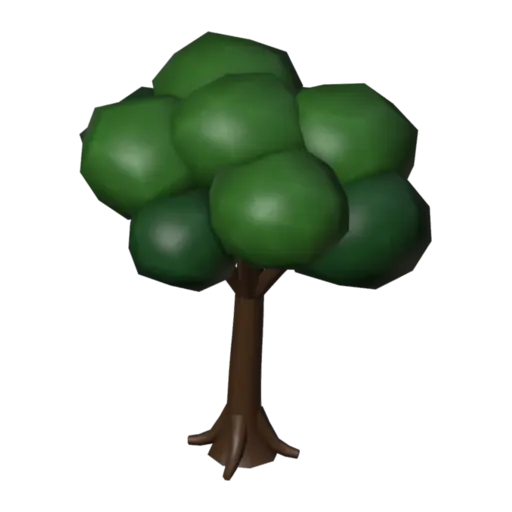
3D the model it was rendered from
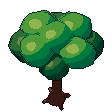
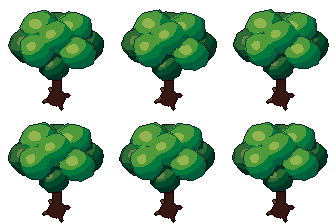
GIFs to share
For a devlog, a post or a Discord message. CC0 like the rest: no credit needed.
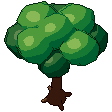
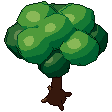
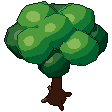
A broad oak with a flared trunk that splits into limbs under a crown of big leaf clumps, light on top and darker below. The Sway clip loops as the whole crown leans gently in the wind. At 112 pixels it is one of the larger props, rendered from a three-quarter view.
The trunk and limbs are tapering tubes that branch from one another. The crown is built from blob clusters in two leaf tones, which gives clear light and shade once Pixor reduces it to pixels. The sway is object animation on a pivot empty, so the crown leans while the trunk stays rooted.
Oaks anchor forests, village greens and overworld maps in RPGs, farming games and top-down adventures. Place a few as landmarks, leave space under the canopy for paths, and mix them with smaller plants. As a prop it stands on the ground at its real size, so it lines up with the houses without rescaling.
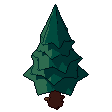
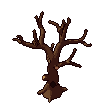
For autumn, change the Leaf and Dark leaf materials to orange and brown. Render a second copy with green leaves and you can show the seasons turning on the same map. The pine tree gives a different outline for variety, and the bush and grass tuft fill the ground beneath.
Use it in your game
- Godot 4:
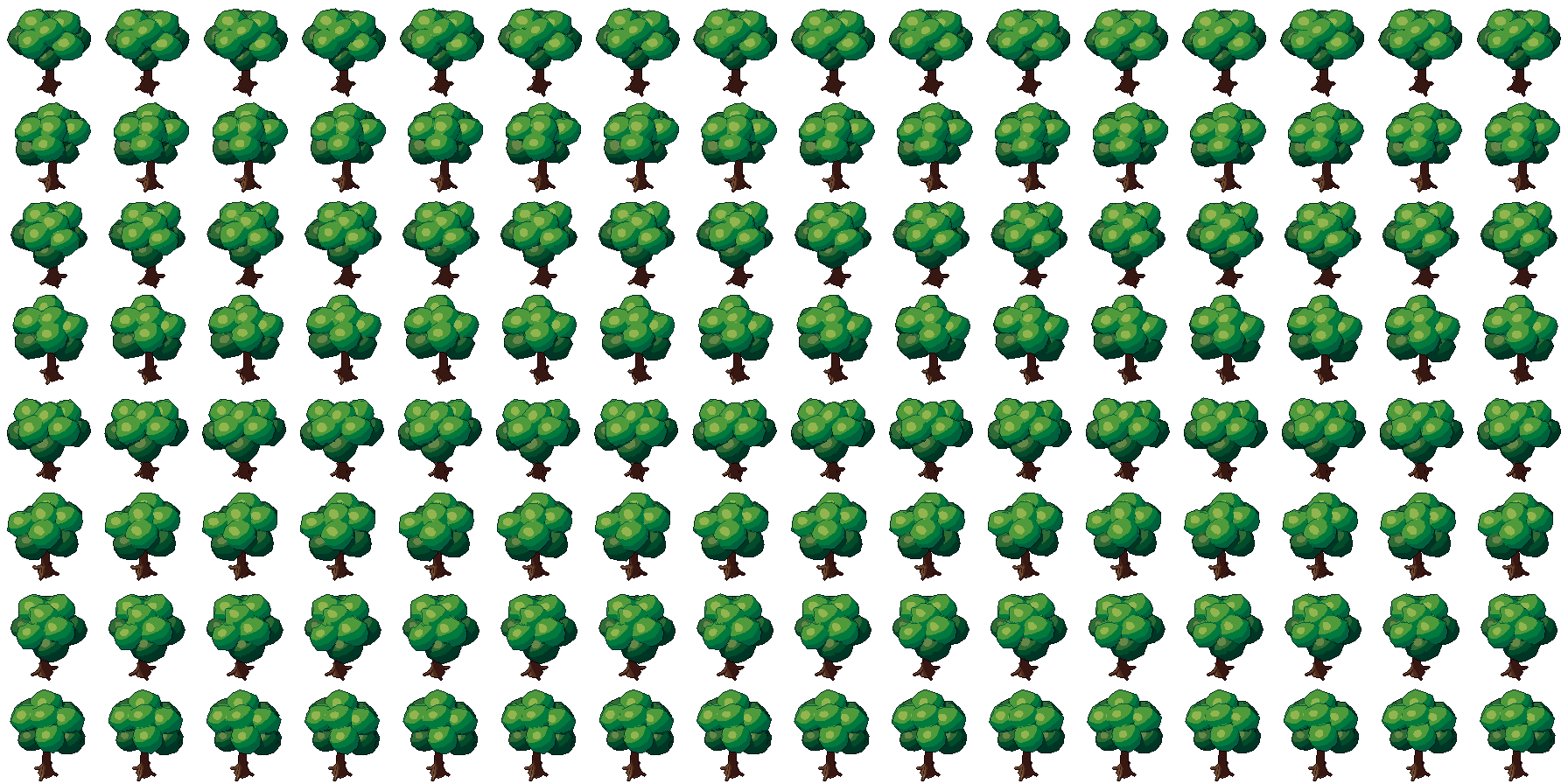
godot/oak-tree-selout-112.tresis aSpriteFramesresource with 8 animations (Sway_South, Sway_Southeast … Sway_Southwest): drop it on anAnimatedSprite2Dand playSway_South. - Aseprite:
aseprite/oak-tree-selout-112.asepritehas a tag for each of those, 128 frames in all, to touch up by hand; its.jsonsits next to it. - Unity, GameMaker and the rest:
sprites/selout/oak-tree-112px-8-sides.pnghas 8 rows of 112×112 px cells, one per action and side, South (front) first. A 4-side sheet and the 32, 48 and 64 px sizes are next to it. - Posts and devlogs: the GIFs above, also in the zip’s
gifs/folder. - 3D: the GLB opens in Blender, Godot, Unity and three.js. The
.blendkeeps its modifiers, named parts and materials.
How this look was made
The sprite above is Pixor’s selective outline look. In Pixor every step of a look is a node you can change: the light bands, the outlines, the palette. This is that look’s Style graph:
- dither
- 0
- fill
- 0
- hysteresis
- 0.05
- min highlight
- 2
- rim
- none
- shadows
- on
- specular
- 0.96
- convex
- none
- crease
- selout1
- crease angle
- 55
- depth jump
- 2.5
- inner
- selout2
- min inner line
- 3
- outer
- selout3
- outer inside
- off
- part lines
- on

The other looks in the player (clean, retro, flat) are other Style graphs. With Pixor you can open this asset, change any node, and render your own.